

 Employees: Find any employee, open their whole file and see who reports to whom in one click
Photo cards for every member of staff, an org chart drawn from the Manager field, contracts with an expiry notice, skills with levels, onboarding plans with named owners, and private details that only HR can open.
Free instant access. No credit card required.
One profile holds the whole employment file
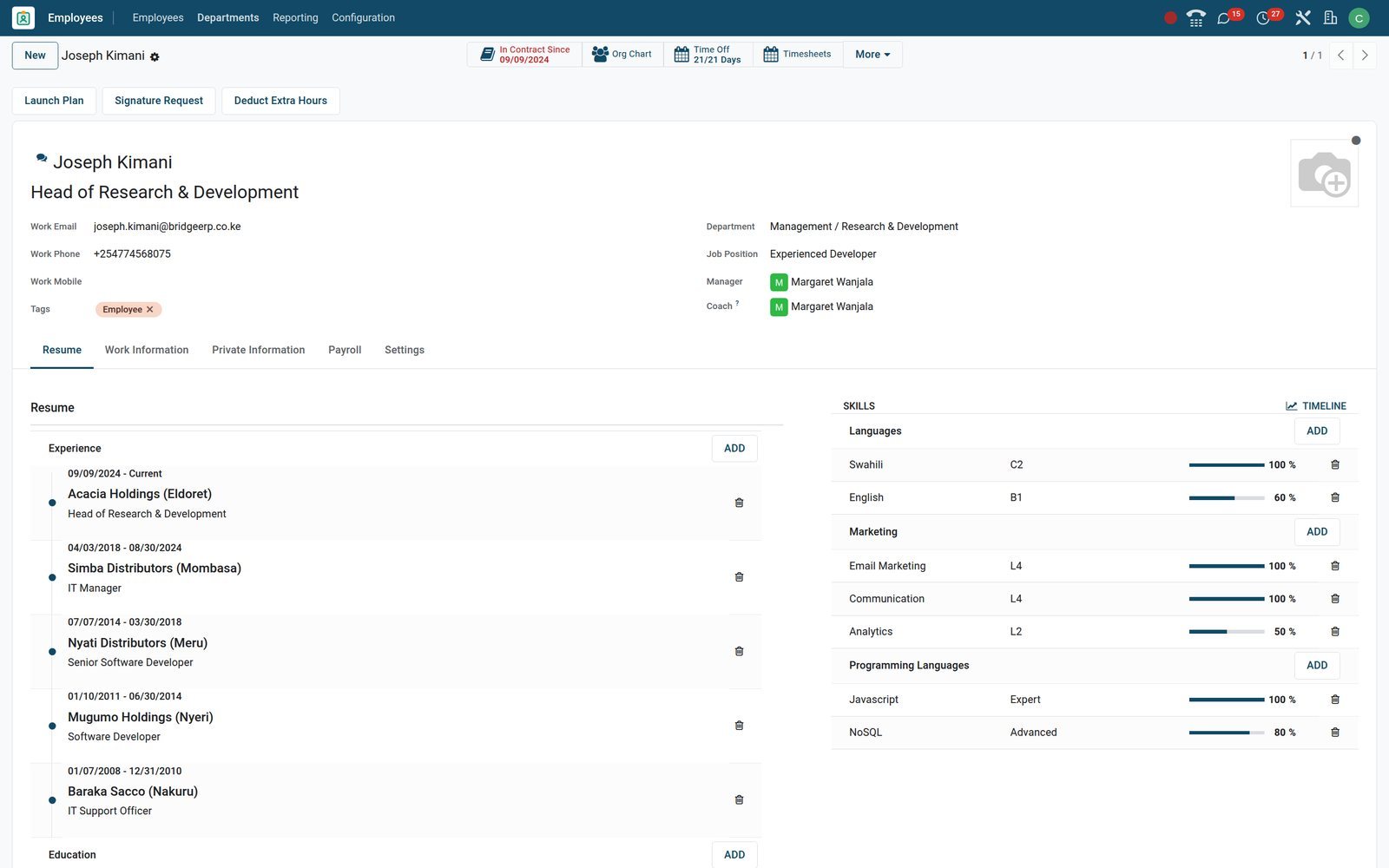
The employee form keeps name, job title, department, manager and coach in the header, five tabs underneath (Résumé, Work Information, Private Information, Payroll, Settings) and every linked record as a counter button across the top.
 Employees
Résumé, skill levels and every linked record on a single form
Joseph Kimani's profile shows his résumé timeline and skills, Javascript at Expert, NoSQL at Advanced and Swahili at C2, with Contracts, Time Off and Timesheets one click away.
Explore Employees →By the numbers
What ships inside the Employees app
Counts of things you will find under the Employees menus on the demo database, not marketing estimates.
- 7
- views of the same people from the Org Chart menu: hierarchy, cards, list, form, activity, graph and pivot
- 86
- skills ready to assign in five skill types: Languages, IT, Programming Languages, Marketing and Soft Skills, each with its own levels
- 11
- employment types under Configuration, from Permanent, Full-Time and Temporary to Intern, Apprenticeship and Seasonal
- 8
- onboarding and offboarding steps ready to launch, each owned by the manager, the employee, the fleet manager or a named user
Inside the app
What is inside
The Employees menus on the demo, grouped by what they let an HR team do.
Employees and Directory
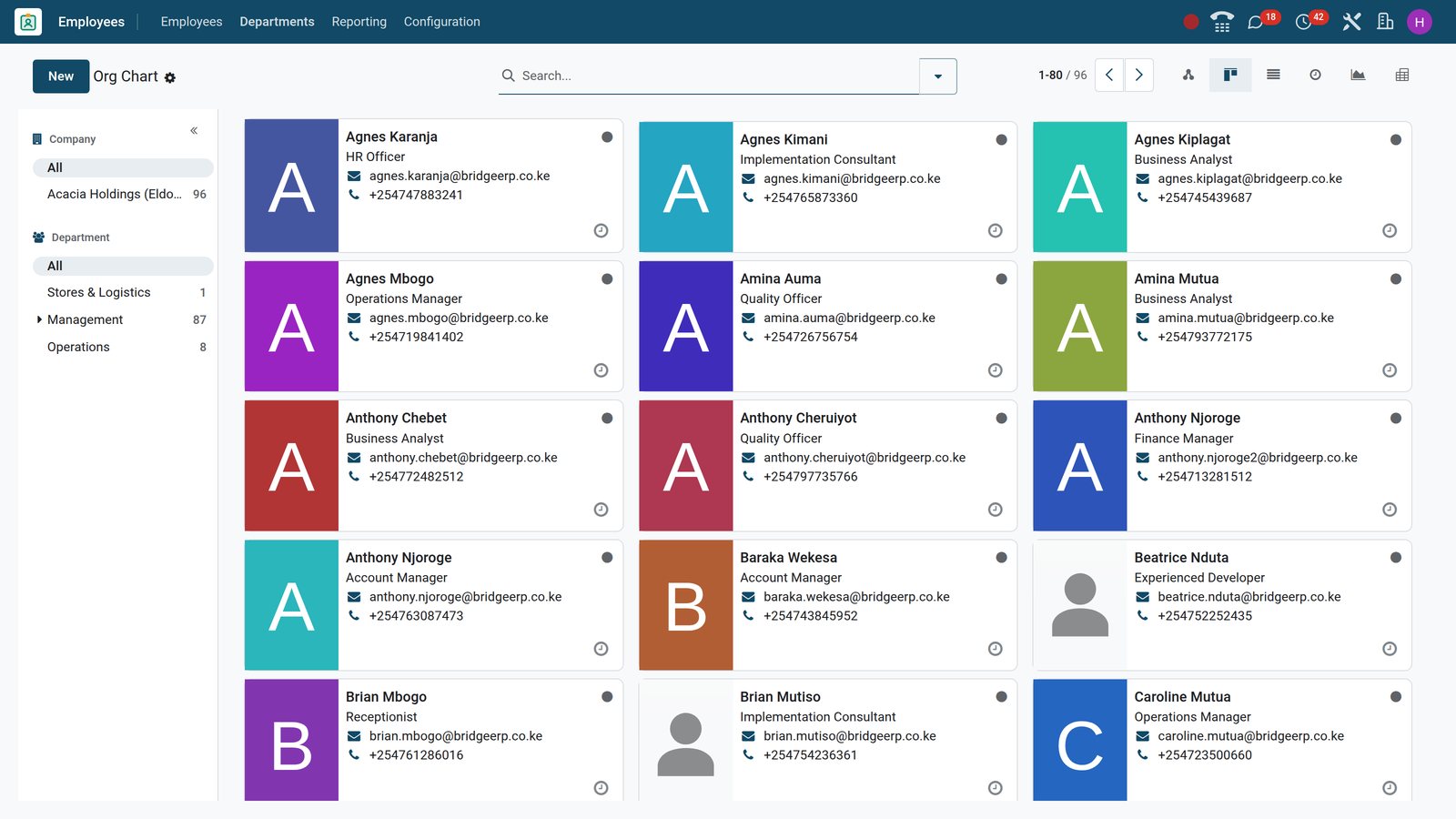
Employees shows every profile as photo cards or a list, with job title, work email, phone and presence; Directory lets colleagues look people up without private tabs.
Org Chart and Departments
Org Chart draws the reporting tree from each employee's Manager field; each department carries its manager, headcount and the time-off, allocation and applicant counts awaiting action.
Contracts
Contracts hold start and end dates, end of trial period, employment type, working schedule, wage and salary structure, and move through New, Running, Expired and Cancelled.
Résumé and skills
Each profile can carry résumé lines typed Experience, Education, Social Media or Side Projects, plus skills picked from Languages, IT, Programming Languages, Marketing and Soft Skills.
Onboarding and offboarding plans
Configuration keeps an Onboarding and an Offboarding plan; Launch Plan assigns each step to the manager, the employee, the fleet manager or a named user.
Work locations, schedules and job positions
Work Locations typed office, home or other, Working Schedules with their hours and time zone, Job Positions and Employment Types all sit under Configuration.
Bank accounts and payroll fields
Bank Accounts lists the salary accounts linked to employees; each profile also keeps legal name, registration number and the payroll fields your localisation asks for.
Reporting
Reporting holds Contracts, with new employees, departures and headcount by month, and Skills, listing every employee, skill and level in list or pivot form.
Step by step
From accepted offer to clean departure in six steps
Each step names the application that does the work; all of them write to the same employee record.
- Step 1
Hire
A hired applicant becomes an employee straight from Recruitment; the new profile takes the name, job position and contact details and stays linked to the candidate.
Recruitment - Step 2
Complete the profile
HR fills Work Information and Private Information: work location, time-off and timesheet approvers, ID and passport numbers, emergency contact and bank account.
Employees - Step 3
Create the contract
A contract sets start date, end of trial period, employment type, working schedule, wage and salary structure; Running is the state Payroll reads from.
Employees - Step 4
Sign and onboard
Signature Request on the profile sends documents from Sign templates, such as the contract, for electronic signature; Launch Plan then schedules IT setup and training.
Sign - Step 5
Work the year
Time off, attendance, timesheets and payslips all attach to the same profile and show as counters on its buttons, so nothing is filed twice.
Time Off - Step 6
Depart cleanly
The departure wizard records reason, date and a note, can close the contract and release the company car; the Offboarding plan then schedules the handover.
Employees
See who reports to whom, by team, from a desk or a phone
The Manager field on every profile drives the org chart; departments roll up headcount and approvals; the same cards open on a phone without a separate app.
 Employees
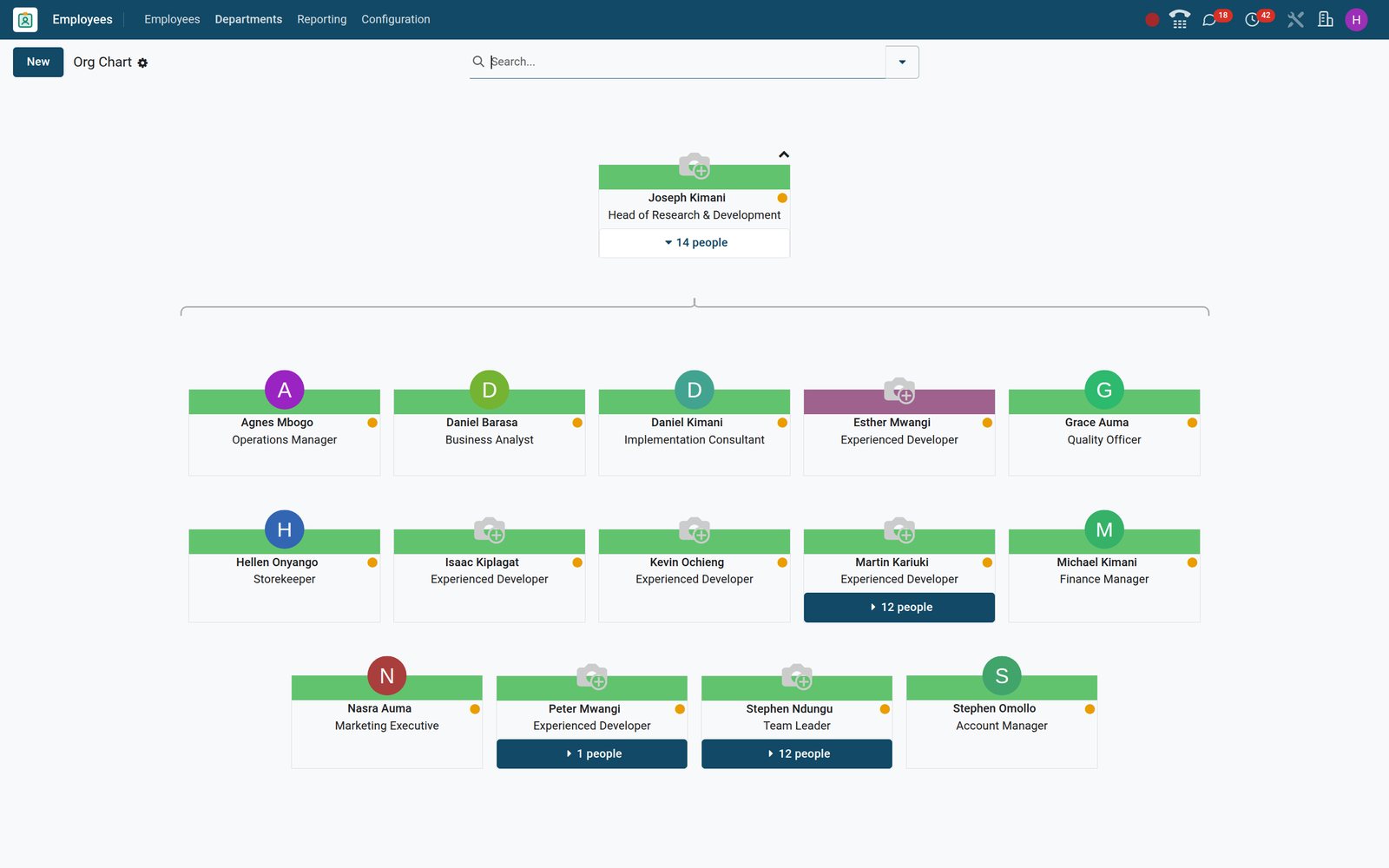
The org chart draws itself from the Manager field
Joseph Kimani's branch on the Org Chart: 14 direct reports as photo cards with job titles, and a count on managers' cards of the people beneath them.
Explore Employees →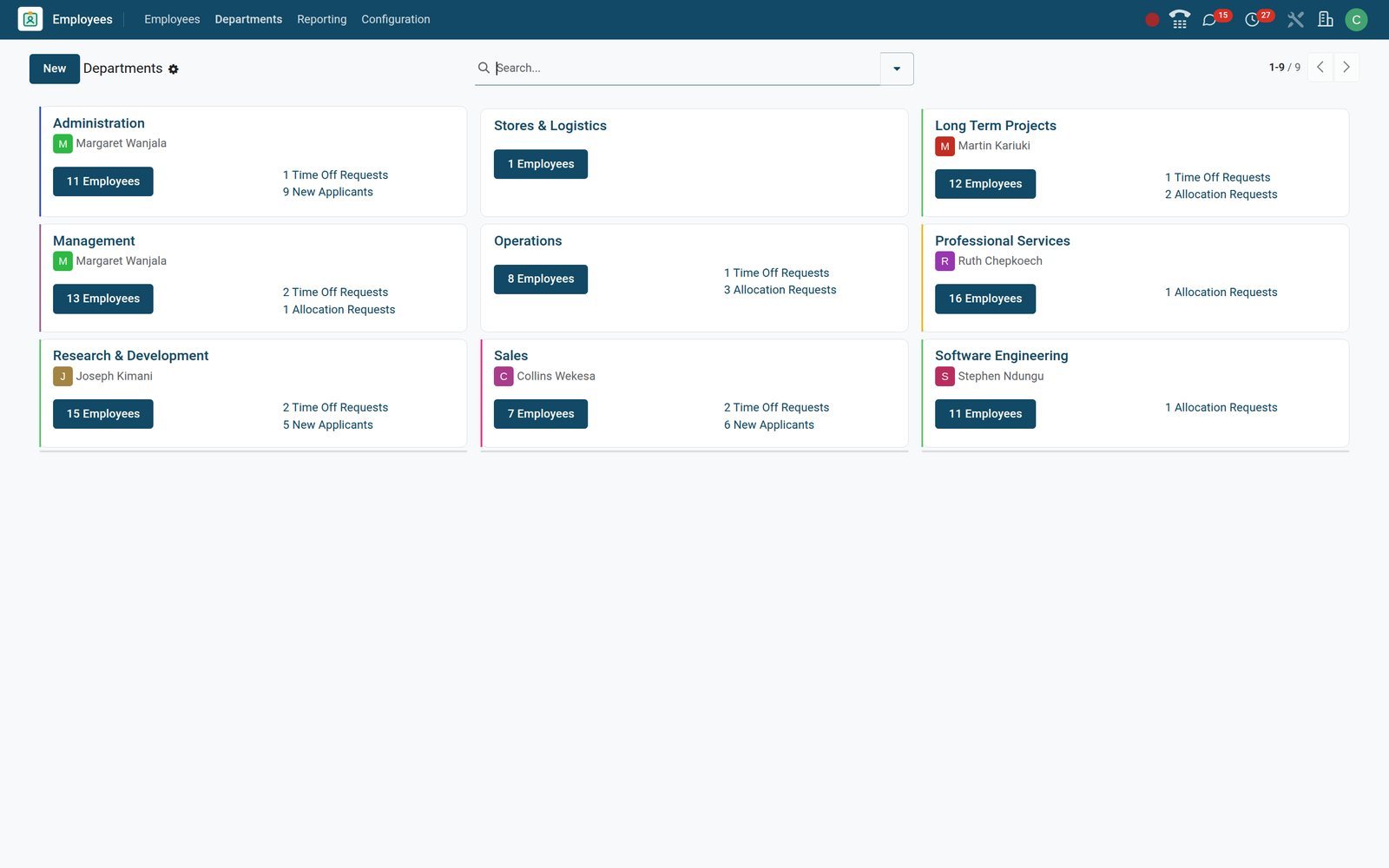 Employees
Department cards with headcount and what needs approving
Professional Services shows 16 employees, Research & Development 15 and Management 13 with 2 time-off requests waiting; cards name the manager where one is set.
Explore Employees →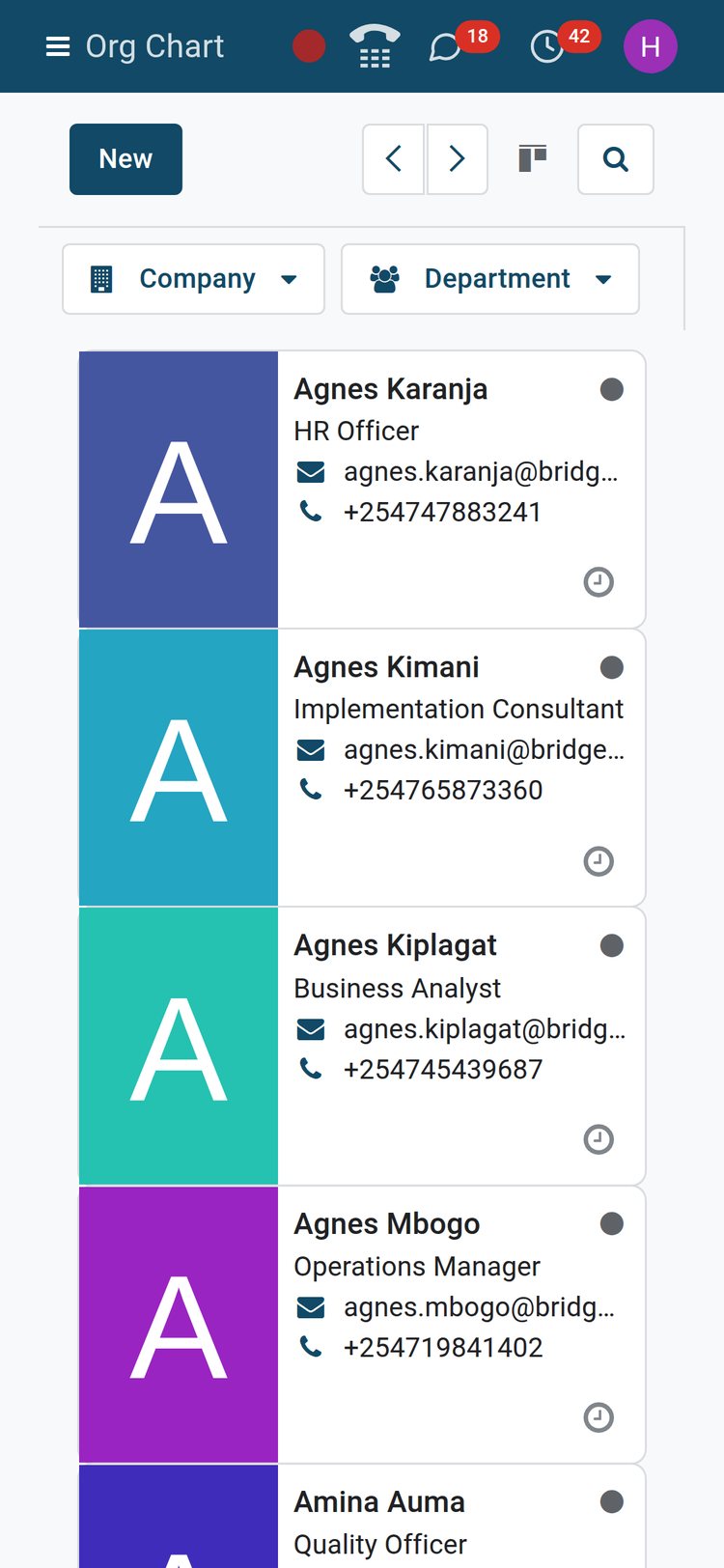 Employees
Employee cards in a pocket
On a phone the employee cards stack with photo, job title, email and phone, so a supervisor on site can find and call a colleague without a laptop.
Explore Employees →Know who speaks Spanish and who can run a Django project
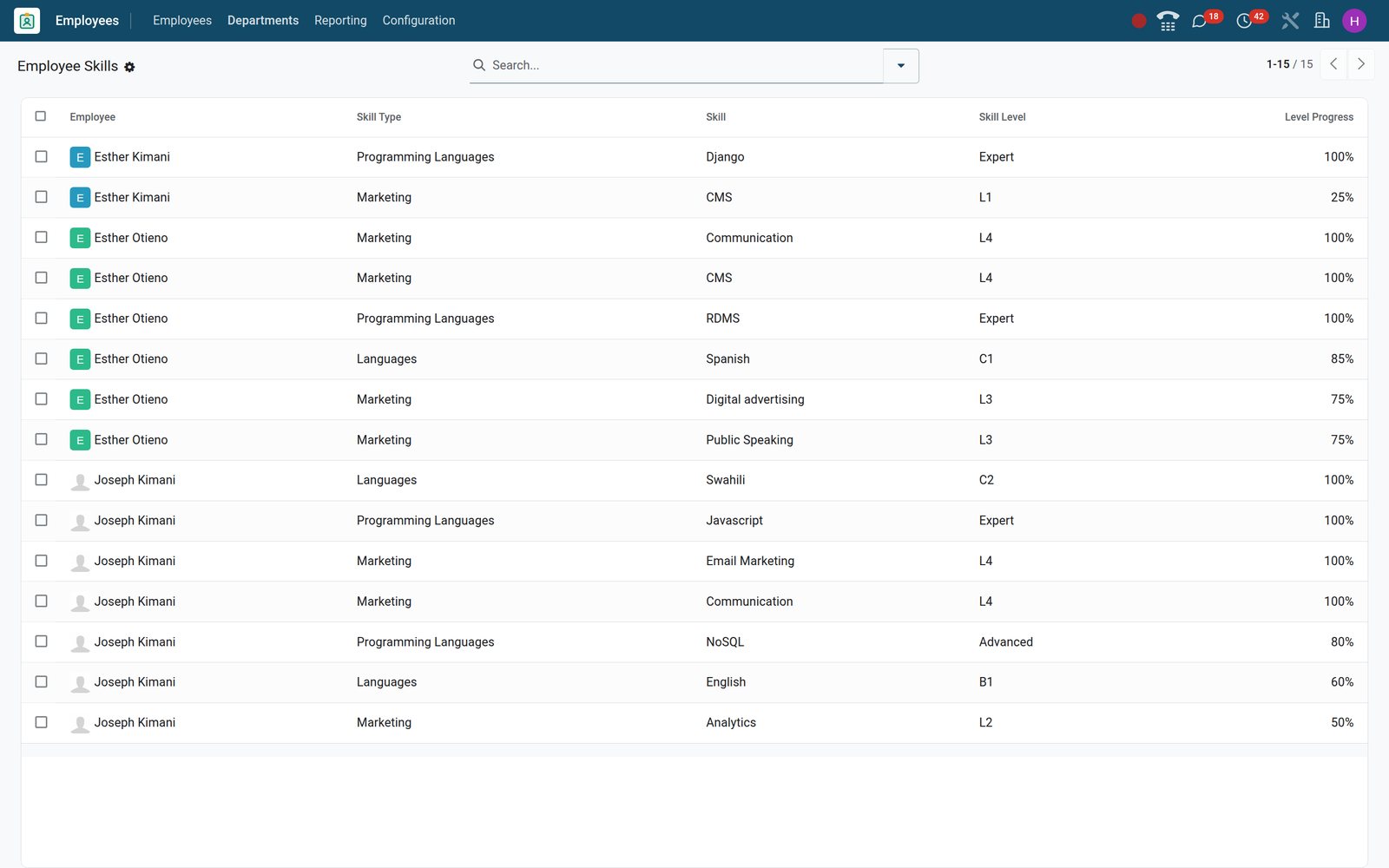
Skills carry a type, a name and a level with a percentage, so the Skills report can be filtered, grouped or pivoted by skill type, skill, level, department or employee.
 Employees
One report of every skill, level and person
The Skills report lists employee, skill type, skill, level and progress, here filtered to three people: Esther Otieno's RDMS at Expert, Esther Kimani's Django at Expert and Joseph Kimani's NoSQL at Advanced.
Explore Employees →Contracts that end on time and starters who are set up on day one
Contracts keep their own list with a status badge and a Contracts to review filter; activity plans turn onboarding and offboarding into scheduled steps with a named owner.
- Employees
Every contract with its dates, schedule and status
The Contracts list shows employee, reference, department, job position, start and end dates and working schedule, with Running, Expired, New and Cancelled status badges.
Explore Employees →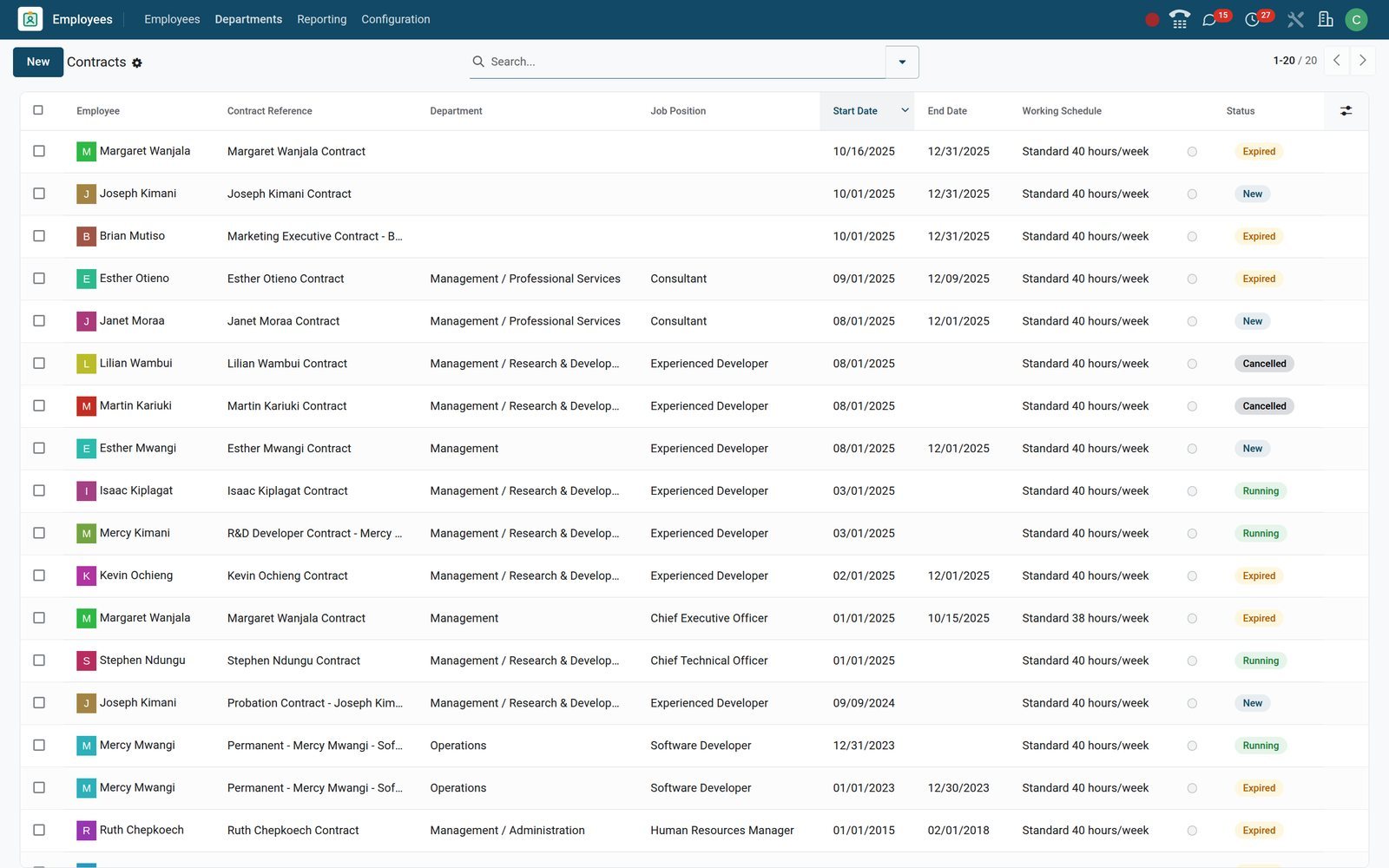
- Employees
An onboarding plan with an owner for every step
The Onboarding plan gives Setup IT Materials and Plan Training to the manager, Training to the employee and Fleet Training to the fleet manager.
Explore Employees →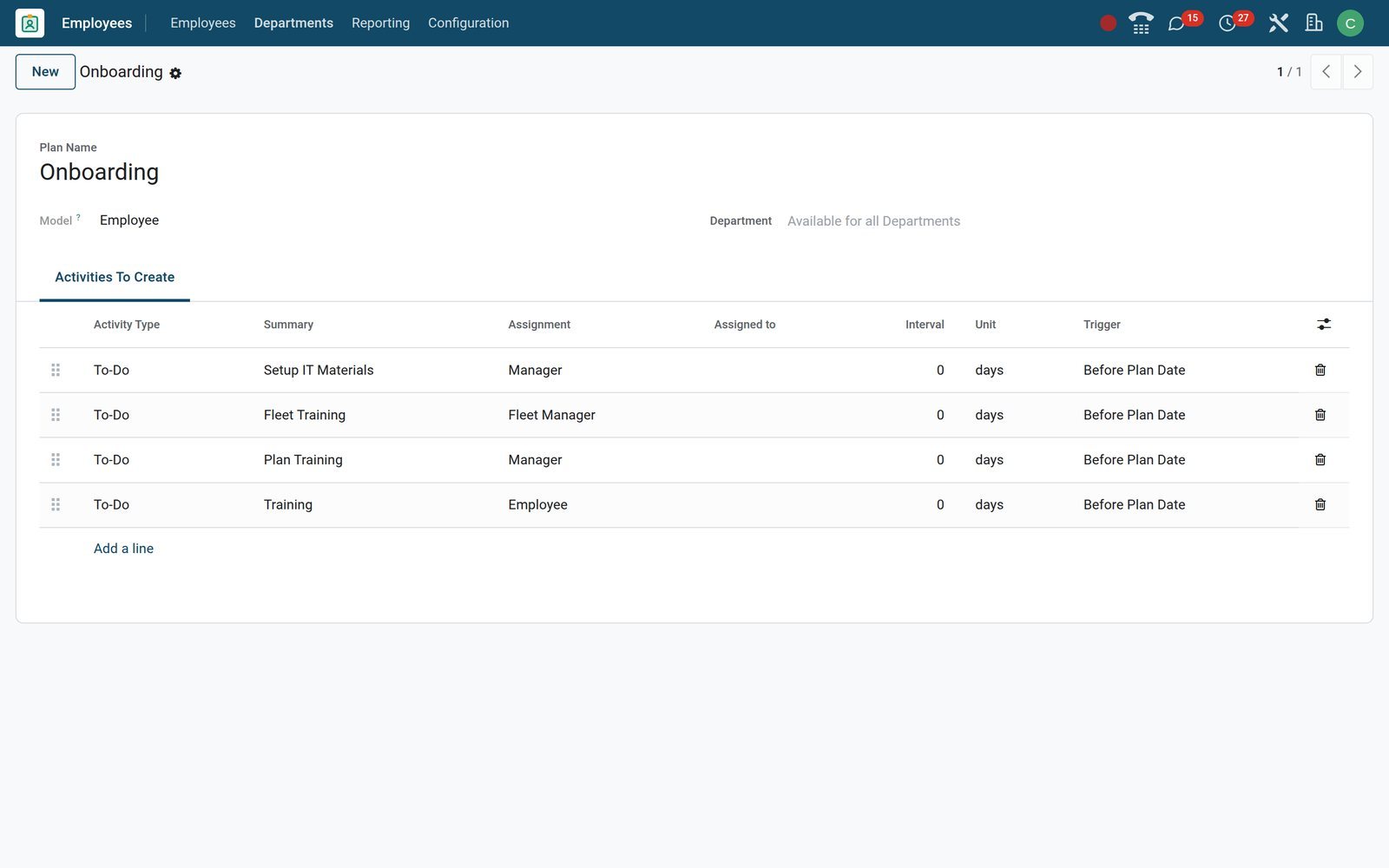
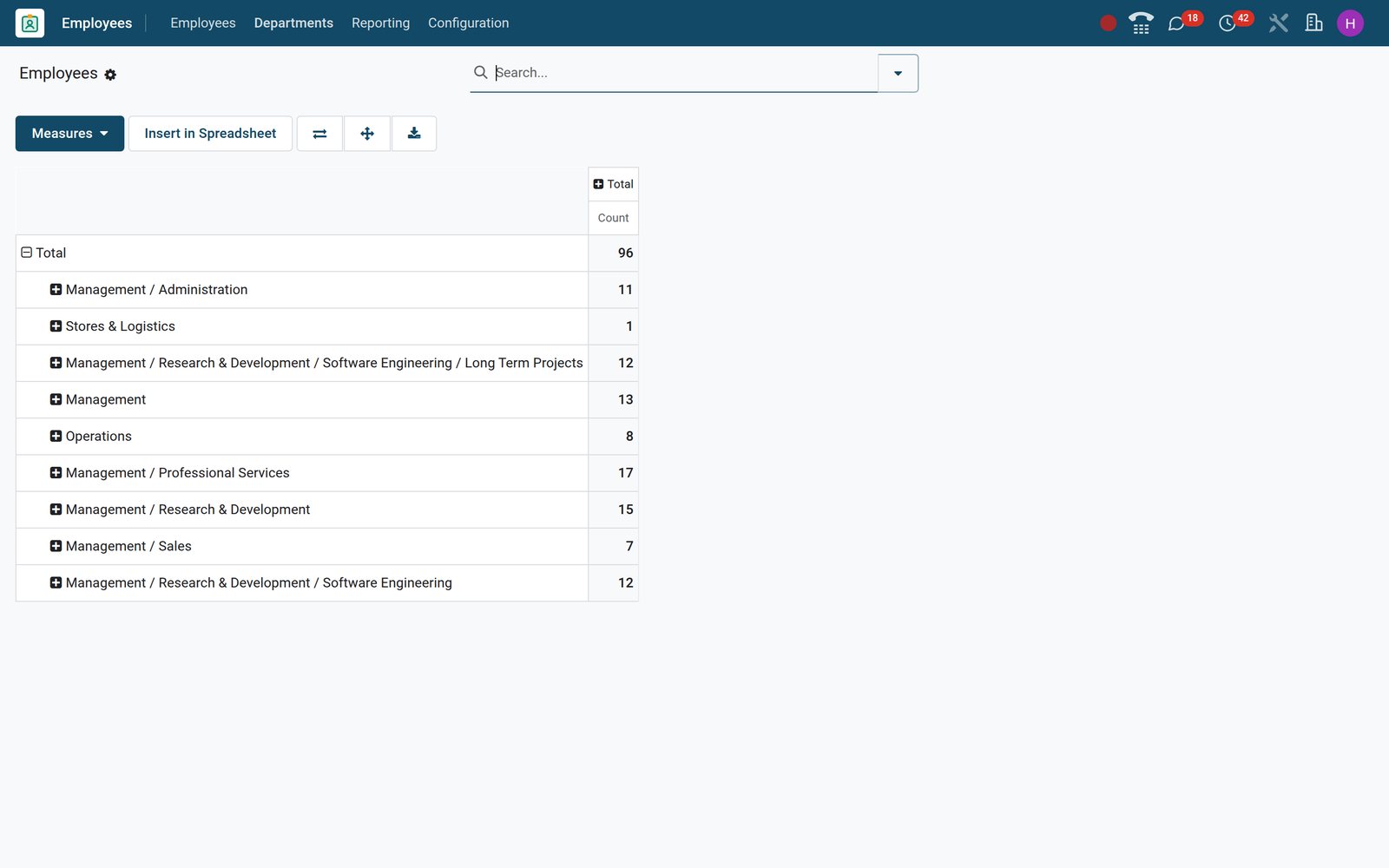
Headcount by department without exporting anything
The Org Chart menu switches to a graph or pivot in place; group by department, job position, manager or tag and the chart redraws.
 Employees
96 people in 9 departments, counted without an export
A count per department: Professional Services 17, Research & Development 15, Management 13, Long Term Projects 12, Software Engineering 12, Administration 11, Operations 8, Sales 7, Stores & Logistics 1.
Explore Employees →Who uses it
Who it is for
Four people use the Employees app every week; each sees a different slice of the same record.
HR administrator
Sees every tab including Private Information and Payroll, edits contracts, launches plans, records departures and runs the Contracts and Skills reports.
Line manager
Uses the My Team and My Department filters, opens their branch of the org chart and owns onboarding steps such as Setup IT Materials by default.
Employee
Opens the Directory to find colleagues, sees Résumé and Work Information only and, when Employee Editing is switched on in Settings, updates their own details.
Payroll officer
Works from Contracts, Bank Accounts and the Payroll tab; Running contracts feed the work entries and payslips produced in the Payroll application.
Works with
Runs with the rest of BridgeERP
Every application below is installed on the demo and reads or writes the employee record.
 PayrollRunning contracts feed work entries and payslips; the payslip count shows on the profile.
 RecruitmentCreate the employee from the hired applicant in one click; job positions are shared.
 Time OffAllocations and requests per employee; the Time Off approver sits on the profile.
 TimesheetsThe timesheet approver and hours logged live on the employee form.
 FleetCompany cars link to their drivers; the departure wizard can release the vehicle.
 SignSignature Request on the profile sends contracts and letters out for electronic signature.
 Point of SalePIN and Badge ID on the Settings tab log cashiers into the till.
 ProjectsTask planning follows each employee's working schedule; skills sit on the same profile.
 AccountingPayroll with Accounting posts salary journals; the hourly cost on the profile feeds timesheet costing.
 AppointmentsBookable staff availability follows the working hours set on the employee profile.
 ChatThe chat button on an employee's card or avatar opens a direct message.
 CalendarWorking hours from the profile show when you book a meeting with a colleague.
In your country
Built for how companies actually employ people, across countries
Currencies, companies, permits and time zones are handled on the record, not in a workaround.
Contracts in your currency
Contracts on the demo are in Kenyan shillings; each company keeps its own currency, so a shilling entity and a birr entity share one database.
Several companies, one database
Five companies on the demo, Acacia Holdings, Chui Security Services, Baobab Traders, Soko Agencies and Falcon Tech, share one database; employees, departments and contracts each carry their company.
Work permits and visas
Visa number, work permit number and both expiry dates sit under Private Information; the company notice period, sixty days on the demo, triggers a reminder activity.
National ID, passport and bank account
Identification number, passport number, nationality and the salary bank account are recorded once on the profile and reused by Payroll.
Time zones and working hours
Each working schedule and each employee carries a time zone, Africa/Nairobi on the Falcon Tech schedule, so attendance and time off count in local hours.
Works on a phone
Employee cards, the Directory and forms reflow on a phone screen; the phone shot above is the same database in a browser, not a separate product.
Reports and control
Reports and control
The reports, dashboards and printed documents found under the Employees menus on the demo.
Contract analysis by month
Reporting > Contracts plots new employees, departures and headcount by month from contract dates, in graph or pivot, filtered by department or company.
Skills report and level history
Reporting > Skills lists every employee, skill and level in list or pivot form; each level change is also logged with its date.
Headcount graph and pivot
The Org Chart menu switches to graph or pivot, grouped by department, job position, manager or tags, without leaving the Employees app.
Employees dashboard
Dashboards holds an Employees dashboard under Human Resources, a spreadsheet reading live contract data that you open and filter like any report.
Contract expiry notices
The Contracts to review filter lists contracts needing attention; the company notice period, a week on the demo, alerts the HR responsible before a contract ends.
Printed badges and CVs
Print Badge produces a badge PDF with photo and barcode; the résumé report turns the résumé lines and skills on a profile into a printable CV.
What sets it apart
What sets it apart
Six things you can check on the demo in a minute.
An org chart, not a drawing
The hierarchy comes from the Manager field, so changing someone's line manager on one profile redraws the chart the next time it opens.
Custom fields without a developer
Properties on the employee form let HR add its own fields, such as text, dates, selections or checkboxes, without a developer or a new module.
Presence you can see
The presence icon on each employee card shows who is in or away, using the presence controls chosen in Settings; login-based control is on for every demo company.
Private data kept private
Private Information and Payroll tabs exist only on the HR view; the Directory model carries no private email, ID number or bank field at all.
Plans with named owners
Each plan step names a responsible, manager, employee, fleet manager or a specific user, and becomes a dated activity the moment the plan is launched.
One record, every application
Contracts, payslips, time off, timesheets, vehicles, signatures and attendance all count on the profile's buttons instead of living in separate tools.
Getting started
Getting started
What the first week looks like when you move your staff list onto BridgeERP.
Import from a spreadsheet
The employee list has Import: upload a CSV or XLSX of names, jobs, departments, emails and phones, map the columns and test before loading.
Set the structure first
Create departments with managers, then job positions, work locations, working schedules and employment types under Configuration; profiles pick from those lists.
Decide who sees what
Two access levels: Officer manages all employees, Administrator also configures the app; everyone else gets the Directory with Résumé and Work Information only.
Turn employees into users
Create User on a profile links a login; Employee Editing in Settings lets staff maintain their own address, phone and emergency contact.
Questions
Questions about Employees
Not covered here? Contact us.
Can employees update their own details?
Yes, when Employee Editing is enabled under Employees > Configuration > Settings. Staff then edit their own address, phone and emergency contact, while contract and pay fields stay with HR.
Who can see private information such as ID numbers and bank accounts?
Only users in the Employees Officer or Administrator groups. Everyone else opens the Directory, a separate view that carries Résumé and Work Information only.
Can we import our staff list from Excel?
Yes. Open the employee list, choose Import, upload a CSV or XLSX, map columns such as name, job title, department, manager and work email, then test before loading.
Does it warn us before a contract or work permit expires?
Yes. Each company sets a contract notice period and a work-permit notice period (a week and sixty days on the demo), and BridgeERP schedules a reminder activity before the date.
Can one database hold several companies or branches?
Yes. Employees, departments and contracts each carry a company; the demo runs five companies, with Kenyan shilling and Ethiopian birr entities side by side.
What happens when somebody leaves?
The departure wizard records the reason, date and a note, can close the running contract and release a company car; the Offboarding plan then schedules knowledge transfer, the return of fleet and HR materials, and a termination signature.
Can we print staff ID badges?
Print Badge on any profile generates a PDF badge with photo, name and barcode; the Badge ID doubles as the attendance kiosk and till login.
Is there a mobile version?
The same pages reflow on a phone: photo cards, the Directory and forms. No separate app or copy of the data is needed.
Where Employees fits
Nothing here is a silo: the apps around it read and write the same records, so the hand-offs happen on their own.
What feeds it, and what it feeds — these are real app connections, not a diagram.
- People
- Finance
Employees
Employee records, contracts, attendance, skills, appraisals and referrals.
Employees →
Put Employees to work
Add it to your plan and pay only for what you use, or see it running on your own demo first.