

 Timesheets: Know where every hour goes, and bill the ones that count
BridgeERP Timesheets lets your team log hours on projects and tasks in a weekly grid, gets them validated, and invoices the billable time.
Free instant access. No credit card required.
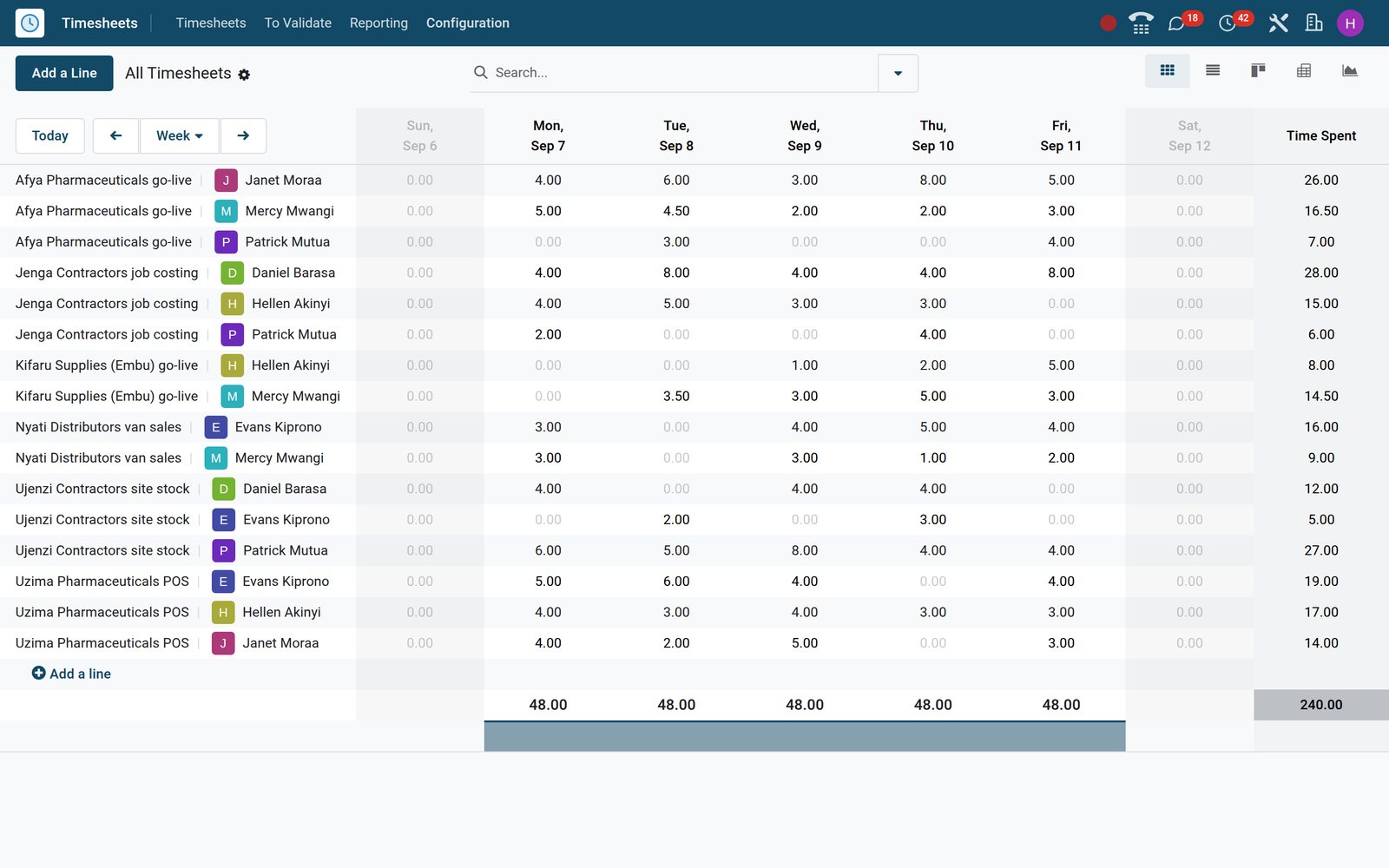
Approve the week before anyone bills it
Managers see each employee's hours for the period and validate them in one click, which locks the lines.
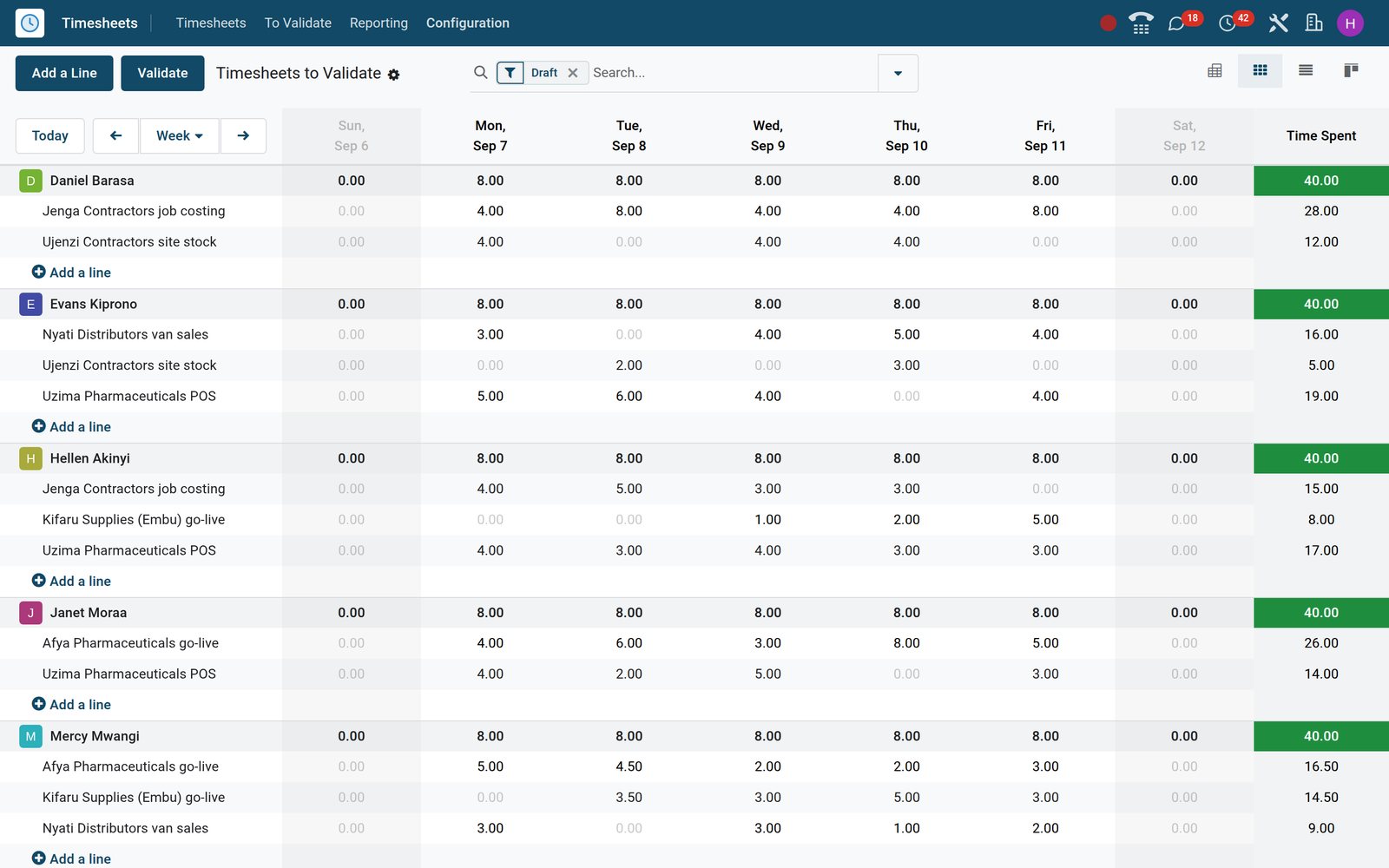 Timesheets
Every employee's week, ready to validate
The validation grid lists the team with their hours per day, so a manager checks the week and validates it.
Explore Timesheets →By the numbers
What ships inside the Timesheets app
Counted in the product itself, on the demo database.
- 5
- ways time is billed: on timesheets, at a fixed price, on milestones, manually, or not at all
- 4
- timesheet reports out of the box: by billing type, employee, project and task
- 2
- encoding methods: log time in hours and minutes, or in days for daily rates
- 2
- automatic reminders: one for employees to log time, one for managers to validate it
Inside the app
What is inside
The parts of the Timesheets app, grouped by what they do for the team.
Weekly grid
Type hours per day against each project and task, and see the totals as you go.
Timer
Start a timer on a task and stop it when the work is done, and the time lands on the line.
Validation
Managers validate each period, and validated lines can no longer be changed by employees.
Billable time
Hours on billable projects link to the sales order line, ready to invoice at the agreed rate.
Rounding and minimum
Set a minimum duration and round every entry up, the way your contracts say.
Reminders
Emails remind employees to log their time and managers to validate it, at the frequency you choose.
Reports
Hours by billing type, employee, project or task, in pivot tables and graphs.
Billing rate indicators
Show each employee their billable rate and a leaderboard of billable time.
Step by step
From planned hours to paid invoice
How time travels through BridgeERP, and which app does each step.
- Step 1
Plan
Shifts in Planning set the hours expected on each project, to compare with the time logged.
Shift Planning - Step 2
Log
Employees log hours on tasks in the grid or with the timer, from the office or the field.
Timesheets - Step 3
Validate
The manager checks the period and validates it, which locks the lines against changes.
Timesheets - Step 4
Invoice
Billable hours flow to the sales order and are invoiced to the client with the other lines.
Invoicing - Step 5
Analyse
Reports compare billable and non-billable time per project, task and employee.
Timesheets


See how much of the time is billable
The billing report splits every project's hours by how they are billed, so unbilled work is visible.
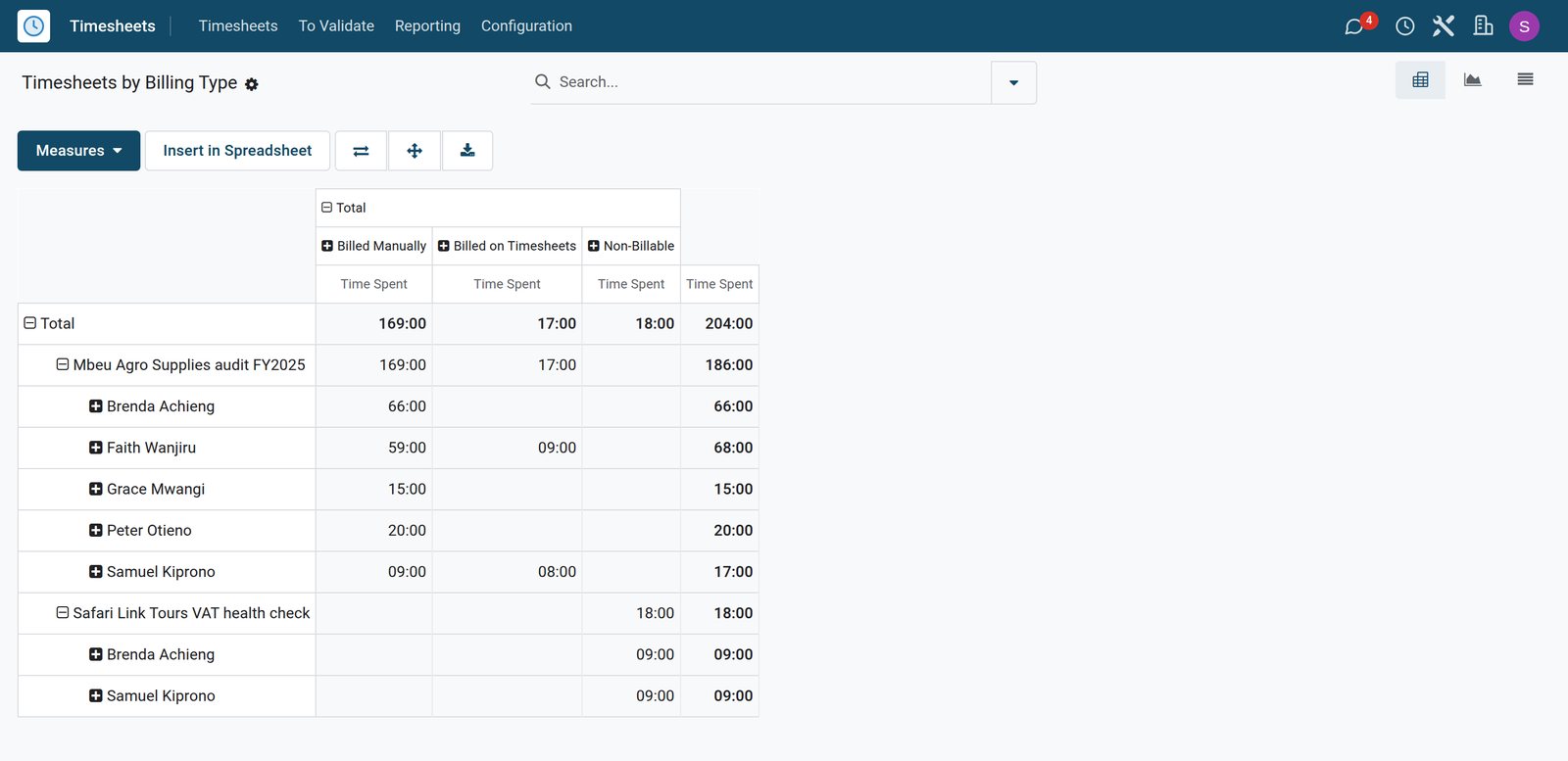 Timesheets
Hours by project and billing type
The timesheets report puts each project and its consultants in rows and each billing type in a column, with the hours logged.
Explore Timesheets →Who uses it
Who uses it, and what they see
Time involves the people who log it, check it and bill it.
Employee
Logs hours on tasks in the weekly grid or with the timer, and gets a reminder when time is missing.
Manager
Validates the team's timesheets for the period and follows hours per employee.
Project manager
Compares hours spent with the time allocated on each task and project.
Accountant
Invoices the billable hours from the sales orders and checks what is still to bill.
Works with
Runs with the rest of BridgeERP
Apps that share hours, people and clients with Timesheets.


Set the rules once for everyone
Encoding, billing, rounding and reminders are switched on in the settings, with no customisation.
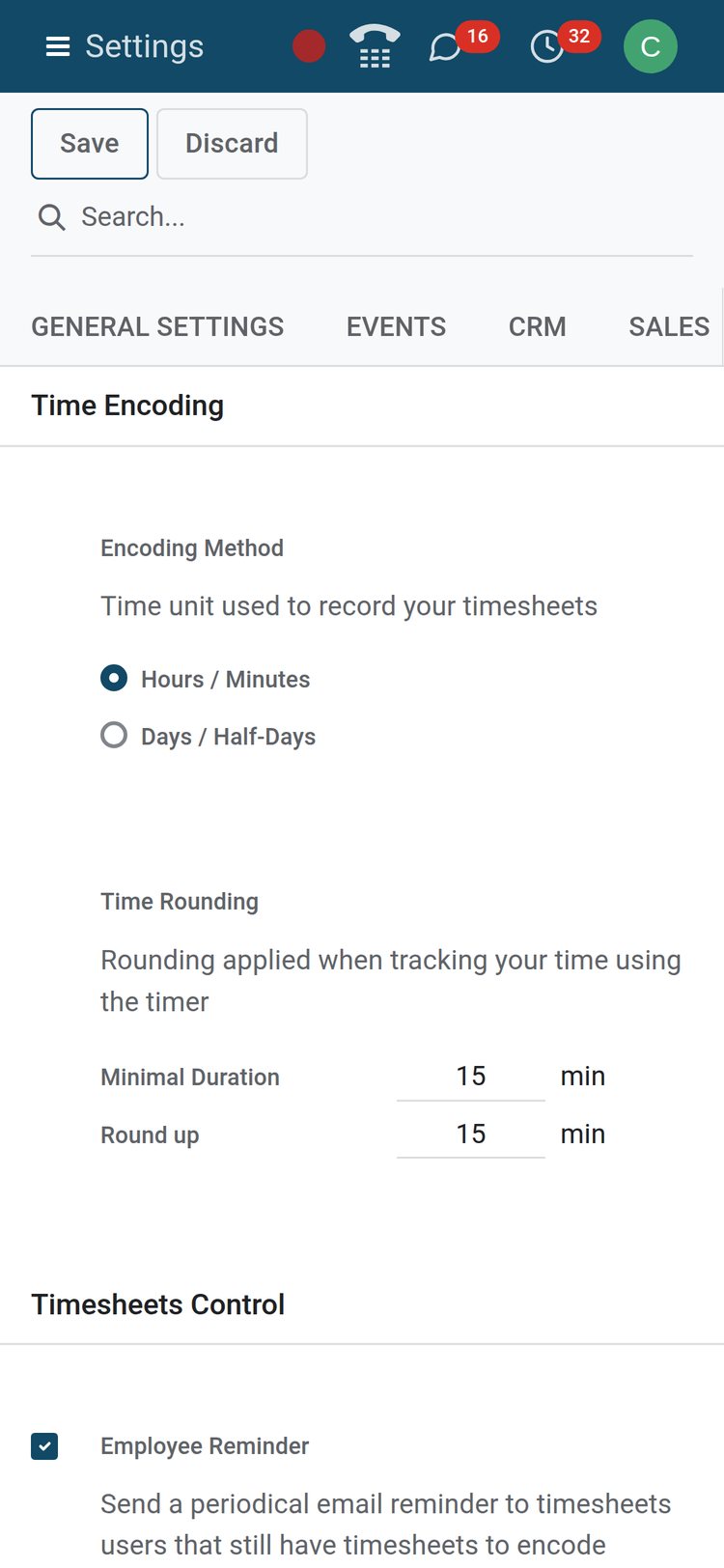 Timesheets
Timesheet rules on one settings page
Hours and minutes or days and half-days, a 15-minute minimum and round-up, and a reminder for employees who still have timesheets to fill in.
Explore Timesheets →In your country
Built for firms in any country
What changes from country to country, shown on the demo's Kenyan company.
Billed in your currency
Billable hours are invoiced in the company currency, Kenya shillings for the Kenyan companies on the demo.
Invoices ready for e-invoicing
Invoices raised from timesheets go through the country's e-invoicing like any other customer invoice, Kenya's eTIMS on the demo.
Daily rates
Consultants billed by the day log their time in days instead of hours.
Getting started
Getting started
How a team moves its time tracking onto BridgeERP.
Choose hours or days
Pick the encoding method, the minimum duration and the rounding in the settings.
Link employees to users
Each person who logs time needs an employee record with an hourly cost.
Switch on reminders
Turn on the employee and approver reminders so the week is complete before invoicing.
Try it on the demo
The demo has hundreds of timesheet lines from a team of employees across several client projects.
Questions
Questions about Timesheets
Not covered here? Contact us.
Can employees use a timer?
Yes. A timer on the task or timesheet line records the time until it is stopped, rounded by your rules.
Can managers approve timesheets?
Yes. Managers validate the period from To Validate, and validated lines are locked for employees.
Can I invoice the hours from timesheets?
Yes. On billable projects linked to a sales order, logged hours are invoiced from that order.
Can we log time in days instead of hours?
Yes. Choose days as the encoding method in the settings for teams that bill daily rates.
Will people be reminded to fill in their timesheets?
Yes. Employee reminders and approver reminders are sent by email at the frequency you set.
Can I compare planned and actual hours?
Yes. The planning analysis compares hours planned in Planning with the hours logged in timesheets.
Put Timesheets to work
Add it to your plan and pay only for what you use, or see it running on your own demo first.