

 Appointments: Let clients book the right person, room or table without a phone call
BridgeERP Appointments turns real staff and resource availability into booking pages and links, sends the reminders, records who turned up and hands leads to CRM.
Free instant access. No credit card required.
See every booking, who it was with and whether they came
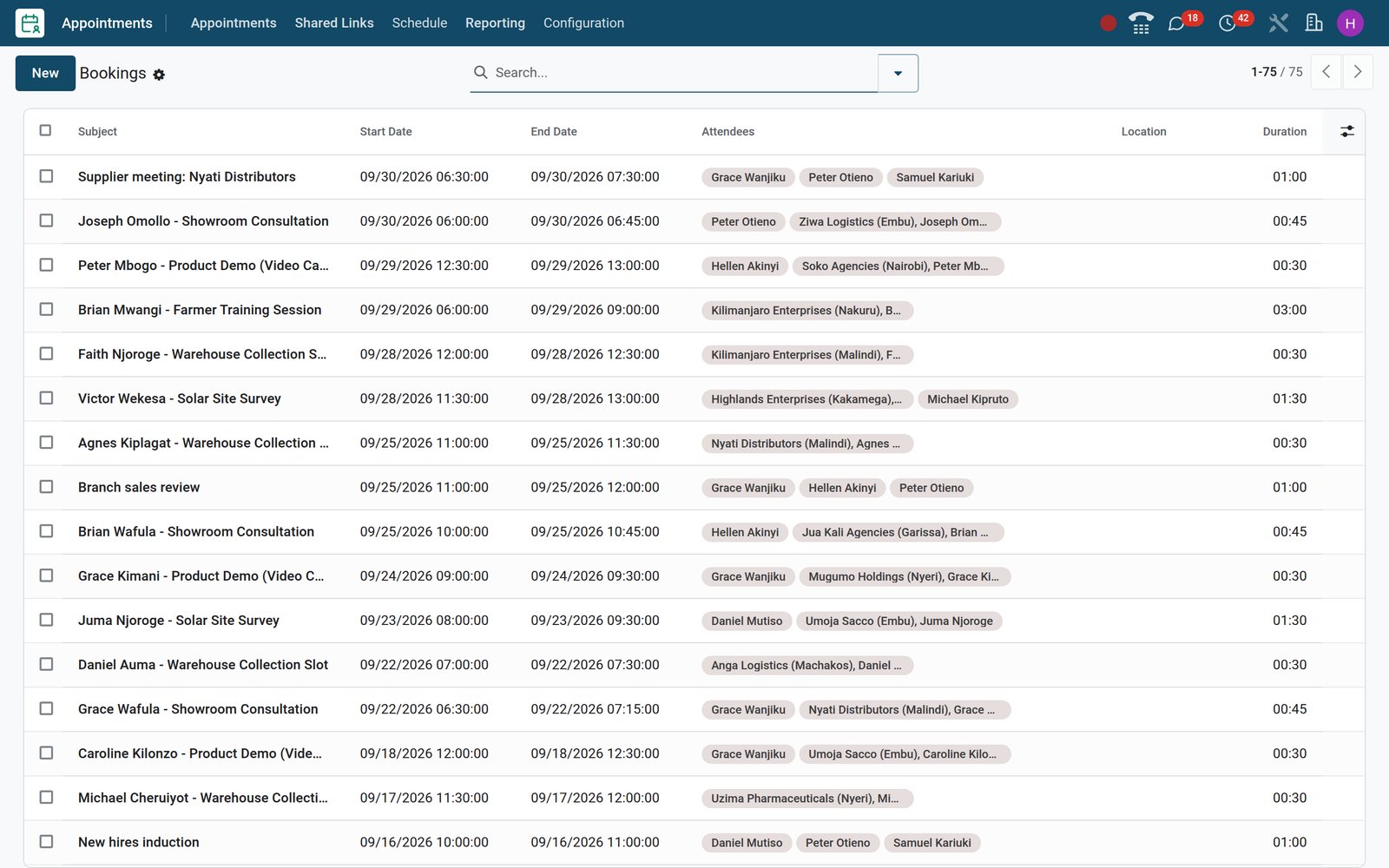
Bookings from your pages and shared links land in one place, each tied to its appointment type, time, attendees and attendance status.
 Appointments
One list of every booking
Each booking carries its appointment type, start time, attendees and a status of requested, booked, attended or no-show, ready to filter or group.
Explore Appointments →By the numbers
A booking desk you can explore today
Live counts from the BridgeERP demo database: the same records you can open when you try the app.
- 11
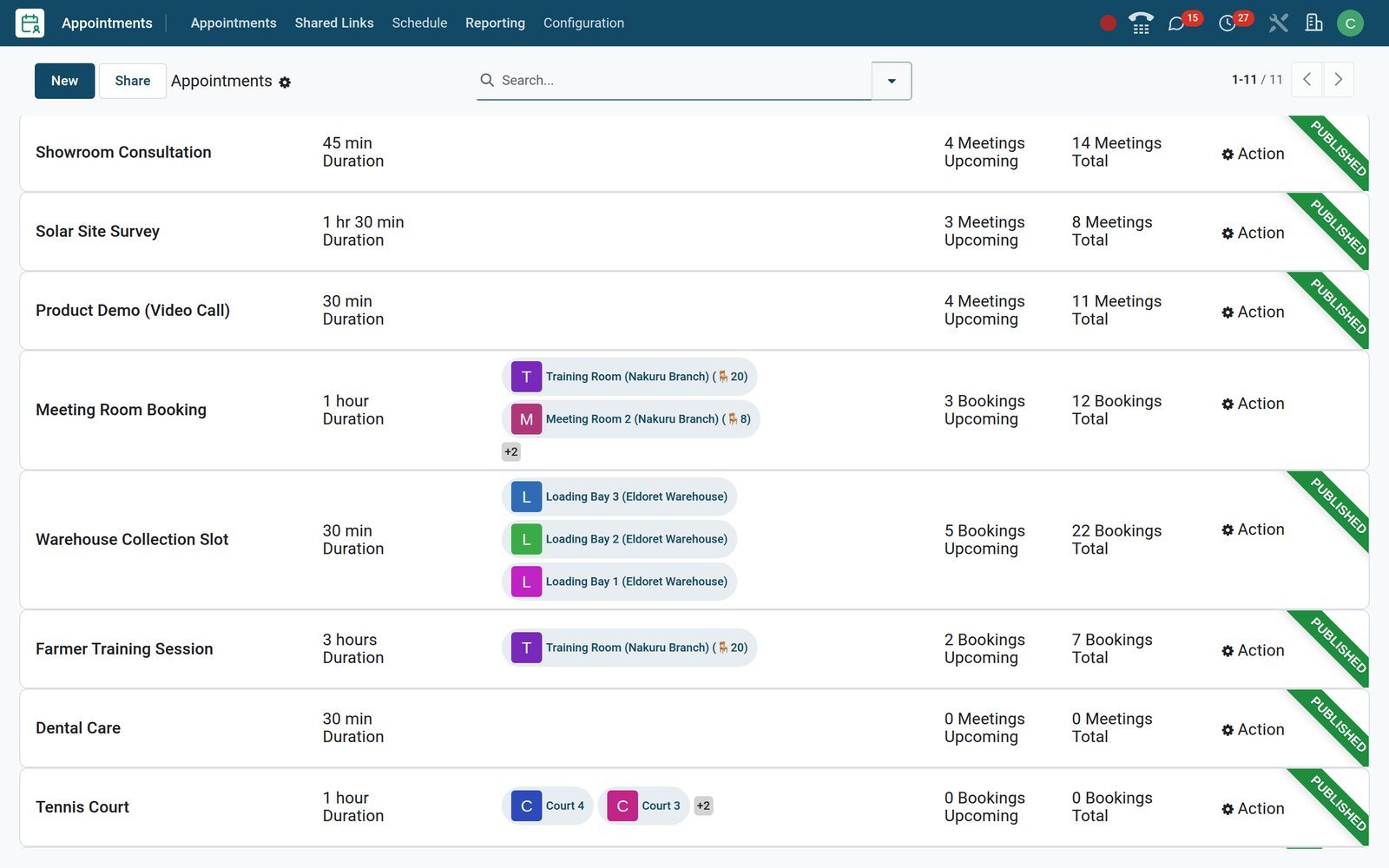
- appointment types configured, from dental care visits to tennis court hire
- 119
- bookable resources, each with its own capacity and working hours
- 61
- Point of Sale restaurant tables mirrored as bookable resources
- 75
- client bookings logged with attendees and an attendance status
Inside the app
Everything a booking desk needs, already in the menus
The Appointments app groups its work into types, schedules, links, resources, reminders, closures and reporting.
Appointment types
Each type sets duration, booking window, cancellation cut-off, staff or resources, questions and reminders, then goes out as a page or link.
Staff Bookings
A schedule of bookings per staff member, so the front desk sees at once who is booked and who still has free time.
Resources Bookings
The same schedule by table, room or court, with the seats each booking reserves recorded against the resource.
Shared Links
Send a direct booking link that pre-selects the appointment types, staff members or resources, under a short code you choose.
Resources
Record each table, room or court with its capacity and working hours, and mark large ones shareable between several smaller bookings.
Reminders
Email, SMS and in-app alarms fire a set time before each booking, and default ones attach themselves to every new appointment type.
Resource Leaves
Close a room, court or table for repairs, holidays or private hire, and it cannot be booked for those dates.
Reporting
Analyse bookings in pivot, graph, calendar or list views, grouped by appointment type, organiser or attendance status.
Step by step
From an open slot to a counted visit
Each step is handled by an app already running on BridgeERP, with no re-keying between them.
- Step 1
Set up the type
Choose duration, weekly slots, staff or resources, booking questions and reminders on one appointment type form.
Appointments - Step 2
Publish or share
Publish the booking page on your website, or send a shared link that pre-selects the person, resource or service.
Website Builder - Step 3
Client books a free slot
The client sees only free slots, answers your questions and, where the type allows it, adds guests to the booking.
Website Builder - Step 4
Fee paid upfront
Types with a payment step charge the booking-fee product before confirming, and the booking keeps a link to its invoice.
Accounting - Step 5
Reminders and a CRM lead
Email and SMS reminders go out on schedule, and lead-creating types open a CRM opportunity with the meeting attached.
CRM - Step 6
Attendance counted
Staff mark each booking attended or no-show, and Reporting totals the outcome by appointment type and organiser.
Appointments


Publish your availability once and stop the back-and-forth
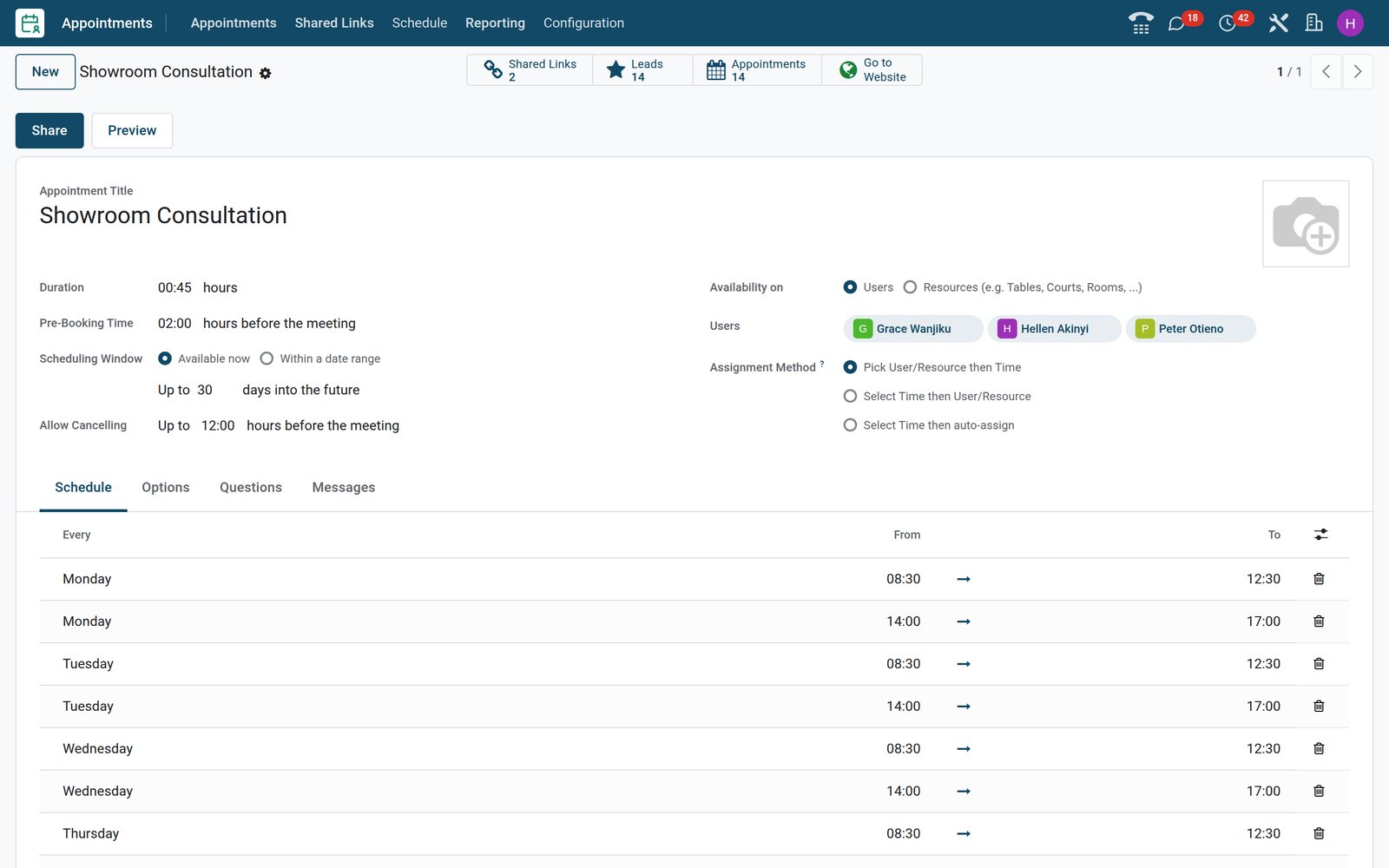
An appointment type holds every rule a booking must respect: length, notice, horizon, cancellation window, staff and weekly slots.
 Appointments
Weekly slots, notice and cancellation rules
Set the duration, minimum notice and how far ahead clients may book, then list the weekly slots and the staff who cover them.
Explore Appointments →Book tables, rooms and courts by the seat, not just the hour
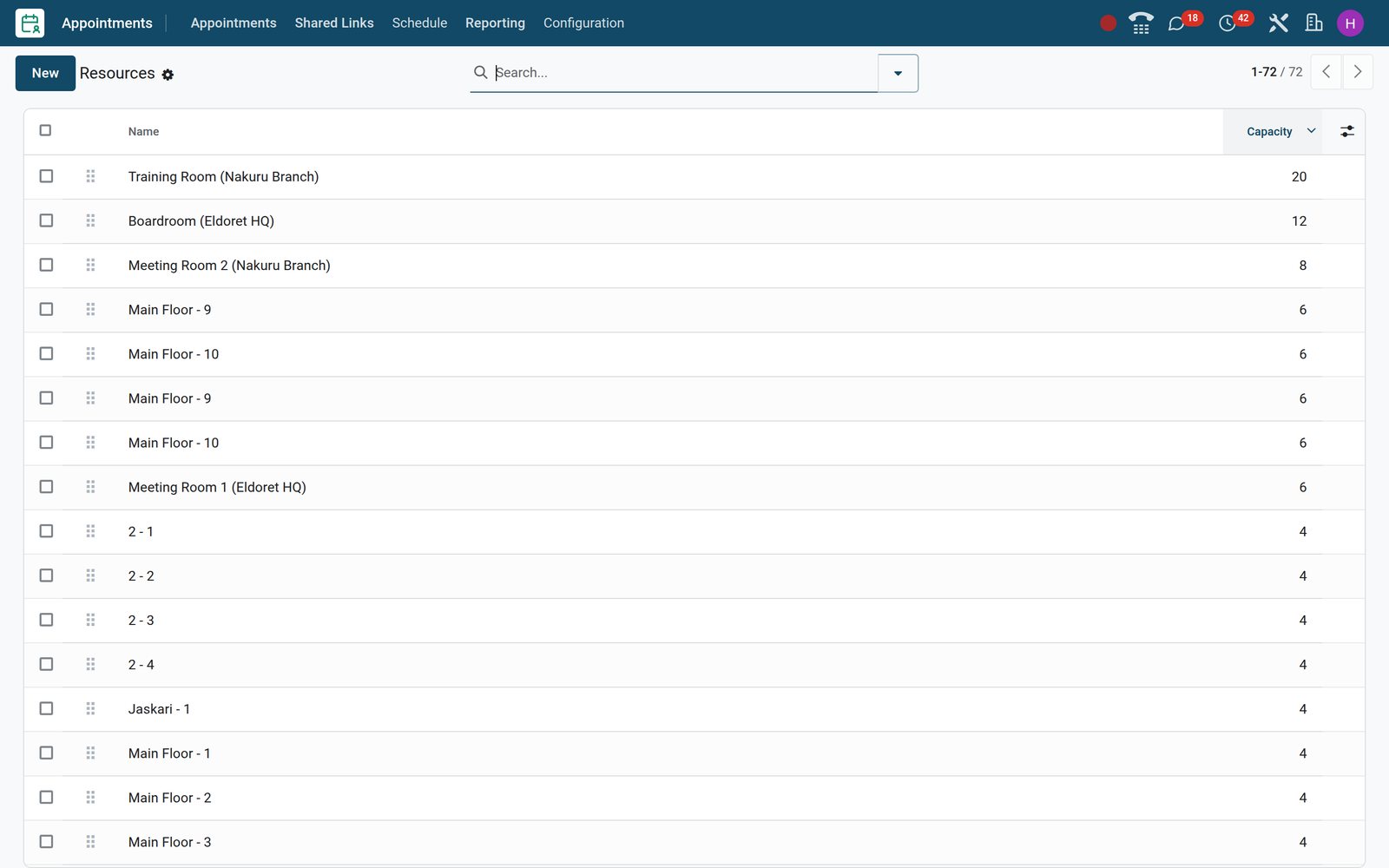
Resource-based types check capacity before confirming, so a table is never double-booked and large spaces can take several smaller parties.
 Appointments
Resources with capacity and linked seating
Each resource carries a capacity and working hours; shareable ones take several bookings until seats run out, and linked ones combine when bookings auto-assign.
Explore Appointments →Know which services fill up and where clients fail to show
Appointment reporting counts every booking by type, organiser and status, so decisions about staffing and deposits rest on numbers.
- Appointments
Attendance by appointment type
A pivot of bookings by appointment type against status shows where no-shows cluster, so reminders or a payment step go there first.
Explore Appointments →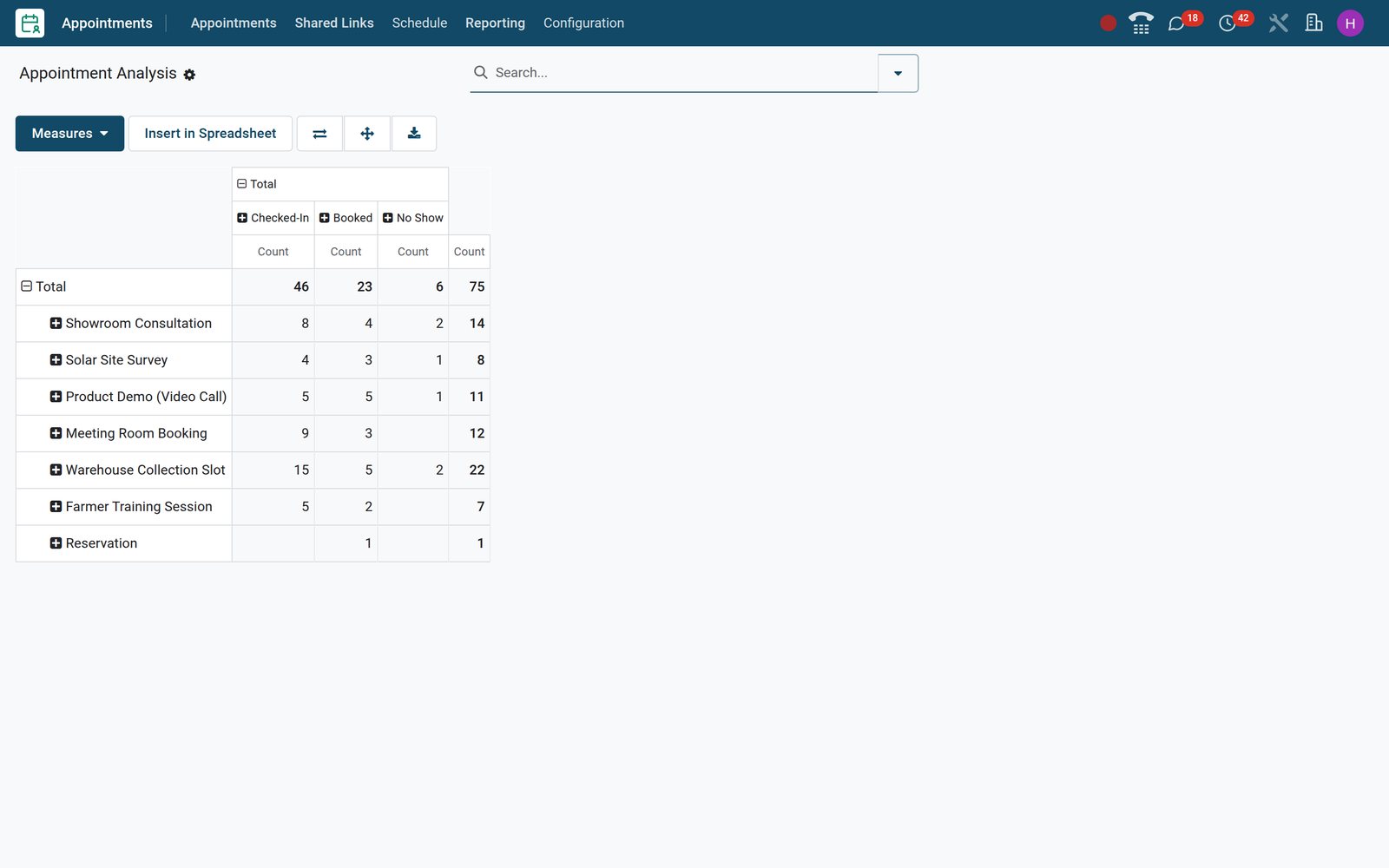
- Appointments
Demand by service
A stacked bar chart of bookings per appointment type and status shows which services carry the load in the period you filter.
Explore Appointments →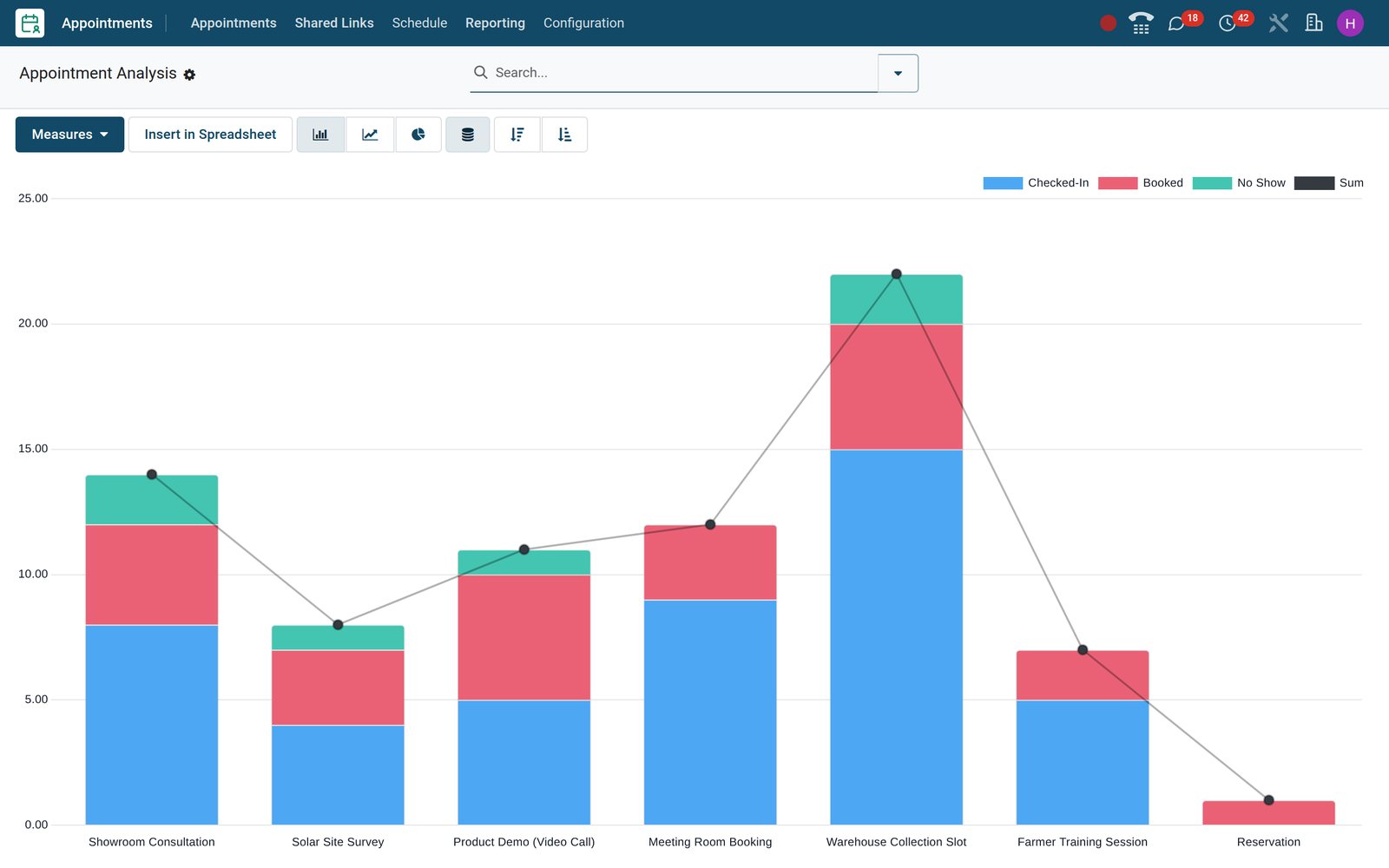
What sets it apart
Built for the way real bookings go wrong
The details that stop double bookings, surprise large parties and empty chairs are settings on the appointment type, not add-ons.
Choose how bookings are assigned
Let clients pick a person or resource first, pick a time first, or let BridgeERP auto-assign whoever is free at that time.
Manual confirmation when it matters
Hold bookings for staff approval, or only those that fill more than a set share of a resource's capacity.
Guests join the booking
Where the type allows guests, clients add companions' names and emails, and each guest joins the meeting as an attendee.
A video link on every online booking
Types using the built-in video option generate a call link on each booking, so remote consultations need no separate meeting tool.
Who uses it
Each person on the team sees the bookings they act on
Owners, front desks, practitioners, sales reps, recruiters and restaurant hosts all work from the same bookings.
Owner or manager
Reads attendance and no-shows by service in Reporting, and tightens notice, cancellation or payment rules on the type when needed.
Front desk
Works from Staff Bookings and Resources Bookings, sees who and what is free, and marks each client attended or no-show.
Practitioner or consultant
Finds each booking in their calendar with the client's answers and the video link, plus reminders before it starts.
Sales rep
Gets a CRM opportunity for each booking on lead-creating types, with the meeting already scheduled on the opportunity.
Recruiter
Sends candidates a shared link tied to their application, so the interview they book lands on the applicant record.
Restaurant host
Point of Sale restaurant tables double as bookable resources, so reservations use the same tables the cashier bills against.
Works with
Runs with the apps your bookings touch
Each connection below is an installed module on the demo, not a third-party plug-in.


In your country
Set up for how clients book and pay, wherever they are
Time zones, text-message reminders, local currencies and fiscal invoicing work the same way for bookings as for the rest of BridgeERP.
Booking times in your time zone
Each type has its own booking time zone, with demo types on Africa/Nairobi, and the page offers a time-zone picker unless you hide it.
SMS reminders
SMS-type reminders text clients before the appointment from the calendar SMS template, for clients who answer texts faster than email.
Booking fees in local currency
Paid types charge a booking-fee product at its list price, and the demo companies trade in Kenyan shillings, Ethiopian birr and US dollars.
Mobile Money at the table
Restaurant bookings are settled at Point of Sale, where the demo already has Cash, Card and Mobile Money payment methods.
E-invoicing on paid bookings
Paid bookings keep a link to their customer invoice, which follows the country's e-invoicing like any other invoice, KRA eTIMS on the demo.
One database, several businesses
Resources can belong to one company or be shared across all, so a group runs separate booking desks without separate systems.
Reports and control
Control no-shows, late cancellations and idle capacity
The controls sit on the appointment type, and the reports read straight from the bookings.
Appointment analysis
Reporting opens every booking as pivot, graph, calendar or list, grouped by appointment type, organiser, status or date.
No-show tracking
Front desks set each booking to attended or no-show, giving owners a true missed-appointment count per service and organiser.
Capacity used per resource
Booking lines record the seats reserved and used on each resource, so you can see how full tables, rooms and courts run.
Upcoming and pending counts
Each appointment type tracks its upcoming bookings and requests awaiting confirmation, so a backlog is visible before it becomes a problem.
Notice and cancellation rules
Minimum notice, a maximum booking horizon and a cancellation cut-off stop last-minute bookings and late cancellations at the source.
Leads per appointment type
Lead-creating types keep a count of the opportunities they produced, tying each booking page to the pipeline it feeds.
Getting started
Start taking bookings with what you already have
Set-up reuses the contacts, users, working hours and email templates already in BridgeERP.
Import resources and clients
Load tables, rooms and client lists from Excel or CSV with the import tool, mapping columns and testing the file before saving.
Default reminders
Mark reminder rules as default and every new appointment type starts with them, so the day-before message is never forgotten.
Working hours you already keep
Resources follow their working-hours calendar, and staff-based types can restrict slots to each employee's working hours.
Your words on every message
Edit the booking-page introduction, the confirmation text and the booked and cancelled email templates to match your house style.
Test with a shared link
Send a shared link to a colleague and run a full booking yourself before you announce the page to clients.
Connect Google or Outlook
Switch on Google Calendar or Outlook synchronisation in Settings when staff want bookings in the calendars they already use.
Questions
Questions about Appointments
Not covered here? Contact us.
Do clients need an account to book an appointment?
No. Clients pick a slot on the booking page or a shared link and enter their name, email and phone number; only your staff need BridgeERP logins.
Can I take a deposit or full payment when someone books?
Yes. Turn on the payment step on the appointment type and choose a booking-fee product. The slot is confirmed once payment succeeds through the online payment provider you enable, and the invoice stays linked to the booking.
How do reminders work, and can they go by SMS?
Each appointment type carries reminder rules that fire a set time before the booking by email, SMS or in-app notification. SMS reminders use the calendar SMS template, and default rules are added to every new type.
Can clients book a room, court or table instead of a person?
Yes. Base the appointment type on resources instead of staff, give each resource a capacity and switch on capacity management, so bookings count seats rather than time alone.
Will BridgeERP double-book my staff?
No. Slots come from each staff member's weekly availability, and times already taken by bookings or meetings in their calendar are not offered again. Resources are checked against their capacity and closures.
Can a booking create a lead in CRM?
Yes. Tick lead creation on the appointment type and every booking opens a CRM opportunity with the meeting attached, so sales can follow up from the pipeline.
Does it handle online consultations?
Yes. Appointment types set to the built-in video option add a video-call link to every booking, so client and staff meet without a separate meeting tool.
Can it sync with Google Calendar or Outlook?
Yes. Google Calendar and Outlook synchronisation are switches in Settings; once enabled, each staff member connects their own calendar. They are not switched on in the public demo.
Put Appointments to work
Add it to your plan and pay only for what you use, or see it running on your own demo first.