

 Projects: Deliver client projects on time, and know what they earn
BridgeERP Project organises every job into tasks, milestones and deadlines, logs the time spent, and shows each project's status at a glance.
Free instant access. No credit card required.
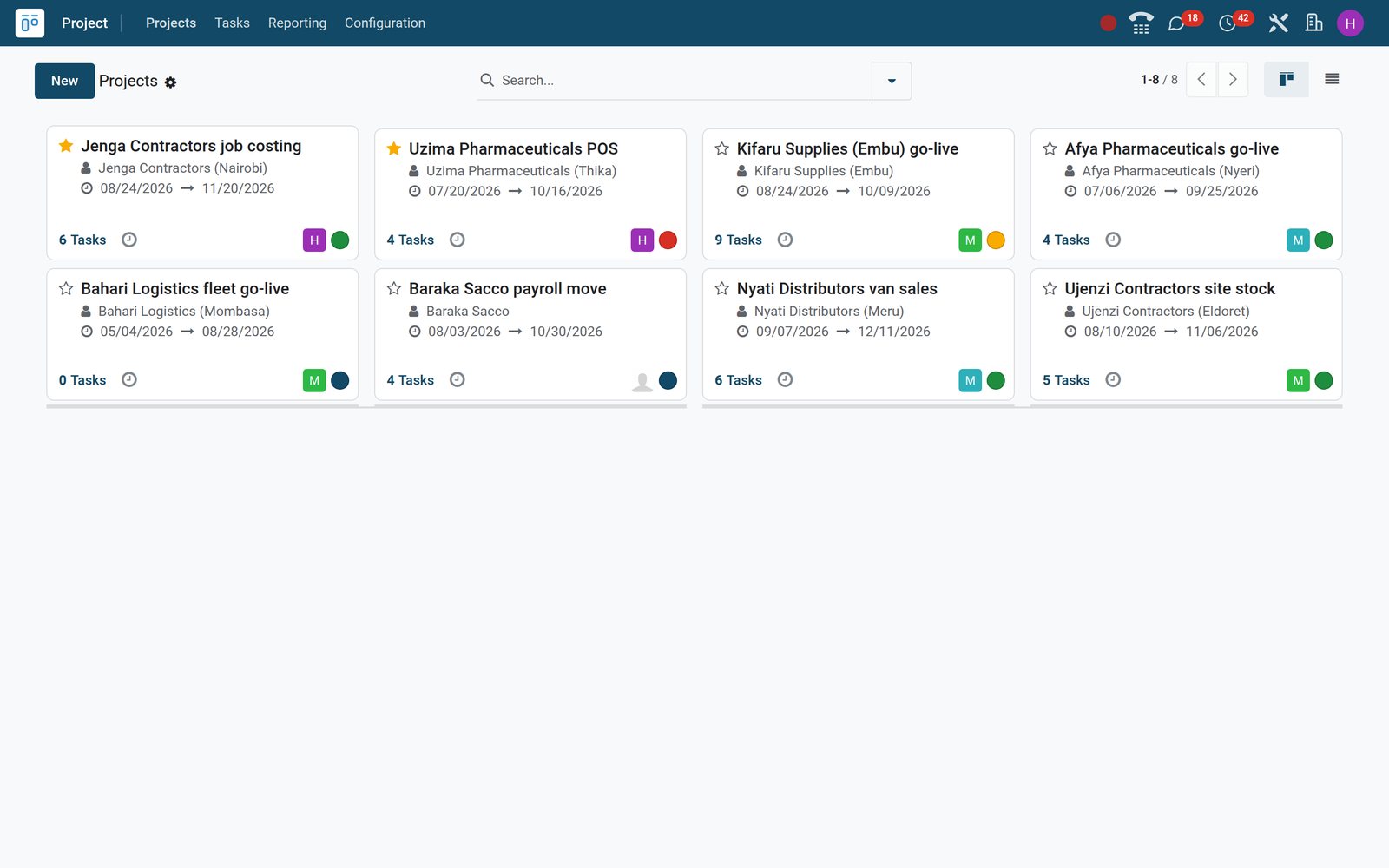
Every task on a board your team already understands
Tasks move through the stages of the project, so everyone sees what is new, what is moving and what is done.
 Projects
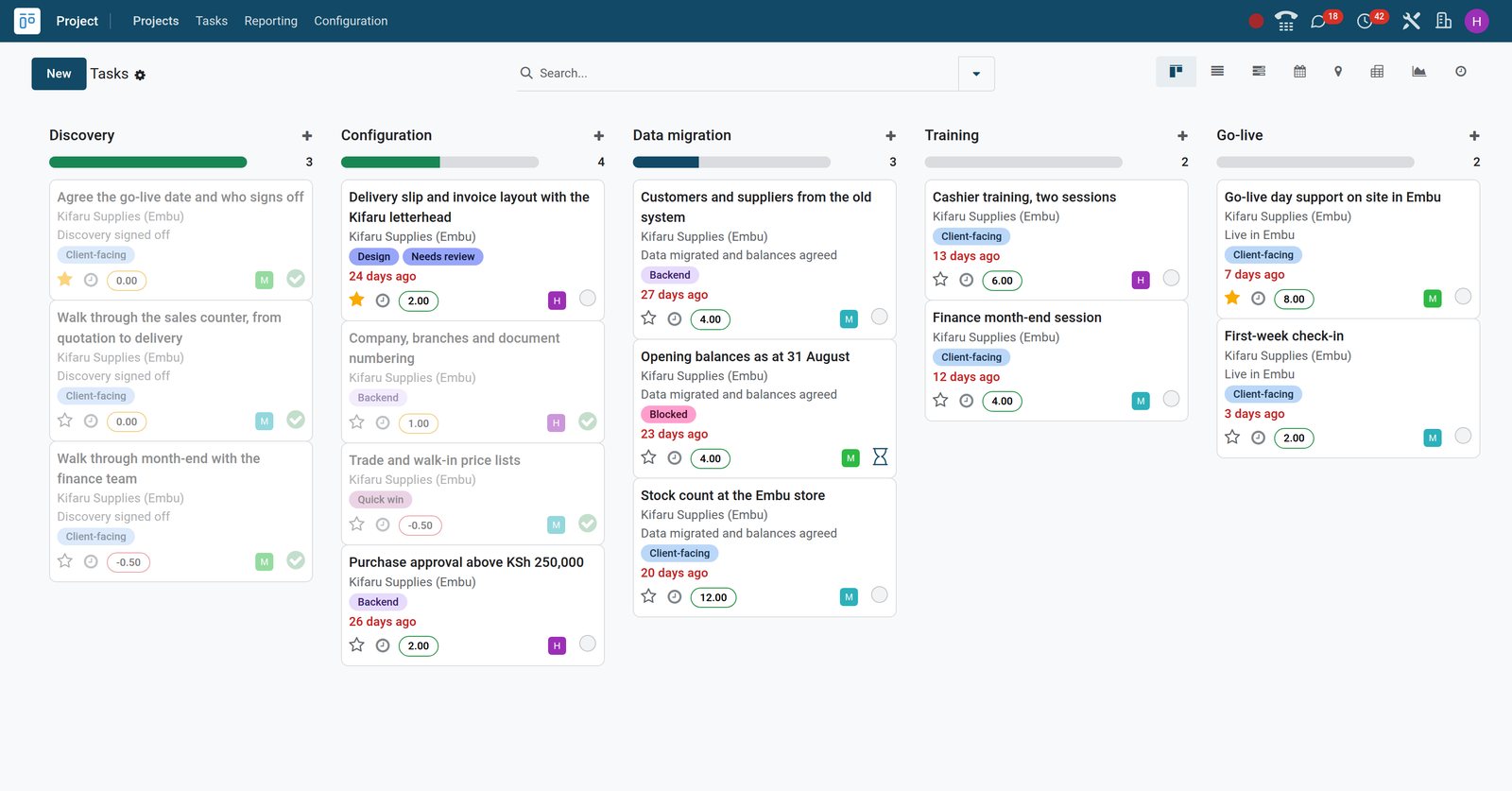
A client go-live at a glance
The task board of the Kifaru Supplies go-live shows each task in its stage, with its milestone, tags, deadline, the hours left and the person on it.
Explore Projects →By the numbers
What ships inside the Project app
Counted in the product itself, on the demo database.
- 9
- ways to look at tasks: kanban, list, Gantt, calendar, map, pivot, graph, activity and form
- 6
- task states, from In Progress and Changes Requested to Approved, Waiting, Done and Cancelled
- 5
- project statuses for updates: On Track, At Risk, Off Track, On Hold and Done
- 3
- visibility levels: invited internal users, all internal users, or portal users as well
Inside the app
What is inside
The parts of the Project app, grouped by what they do for delivery.
Projects and stages
Each project has its customer, dates, tags, manager and its own task stages.
Tasks and sub-tasks
Tasks carry assignees, deadline, priority, tags and sub-tasks for the smaller steps.
Milestones
Group tasks under milestones with a deadline, and mark each milestone as reached.
Task dependencies
A task can wait on others, so nobody starts the painting before the plastering is done.
Recurring tasks
Weekly reports or monthly checks repeat by days, weeks, months or years.
Project updates
Regular updates record the status and progress of a project with the story behind them.
Gantt planning
Tasks with planned dates line up on a Gantt chart to spot overlaps and gaps.
Customer portal
Clients follow their tasks on the portal and can rate the work when a task is done.
Step by step
From signed quote to paid invoice
How a client project travels through BridgeERP, and which app does each step.
- Step 1
Sell
Confirming a sales order for a service creates the project and its tasks automatically.
Sales - Step 2
Plan
The manager sets milestones, deadlines and assignees, and plans the people on the Gantt chart.
Projects - Step 3
Deliver
The team moves tasks through the stages and discusses the work in each task's chatter.
Projects - Step 4
Log time
Everyone logs hours on the task, and the remaining hours update against the allocation.
Timesheets - Step 5
Invoice
Billable hours become invoice lines on the sales order, ready to invoice the client.
Invoicing


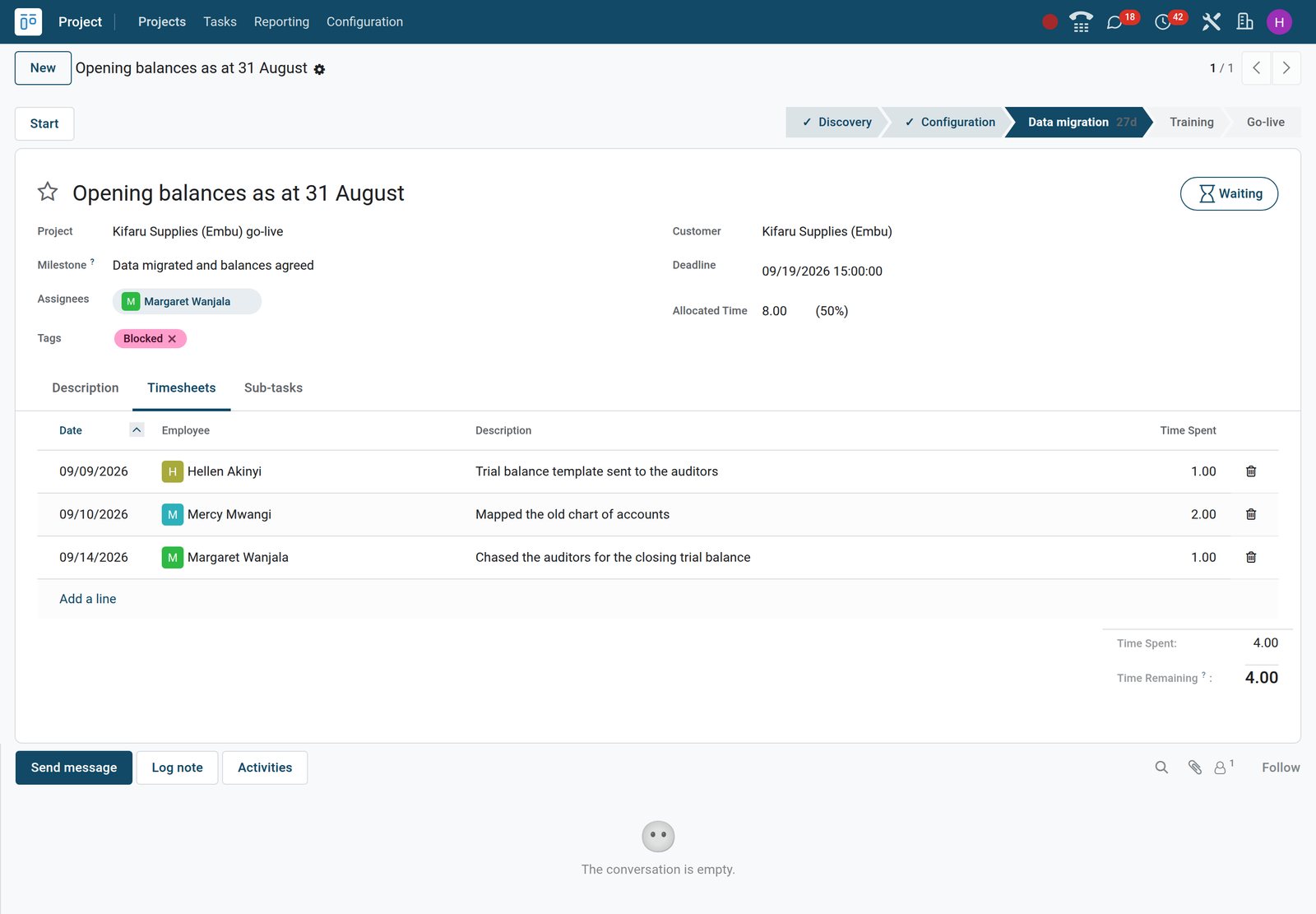
A task with the whole story behind it
Hours, assignees, milestone and conversation stay on the task, so nobody has to ask for an update.
 Projects
Time spent against time allocated
The opening balances task of the Kifaru go-live shows its milestone, its Blocked tag and the hours logged by three people against the eight hours allocated.
Explore Projects →Know how each project is really doing
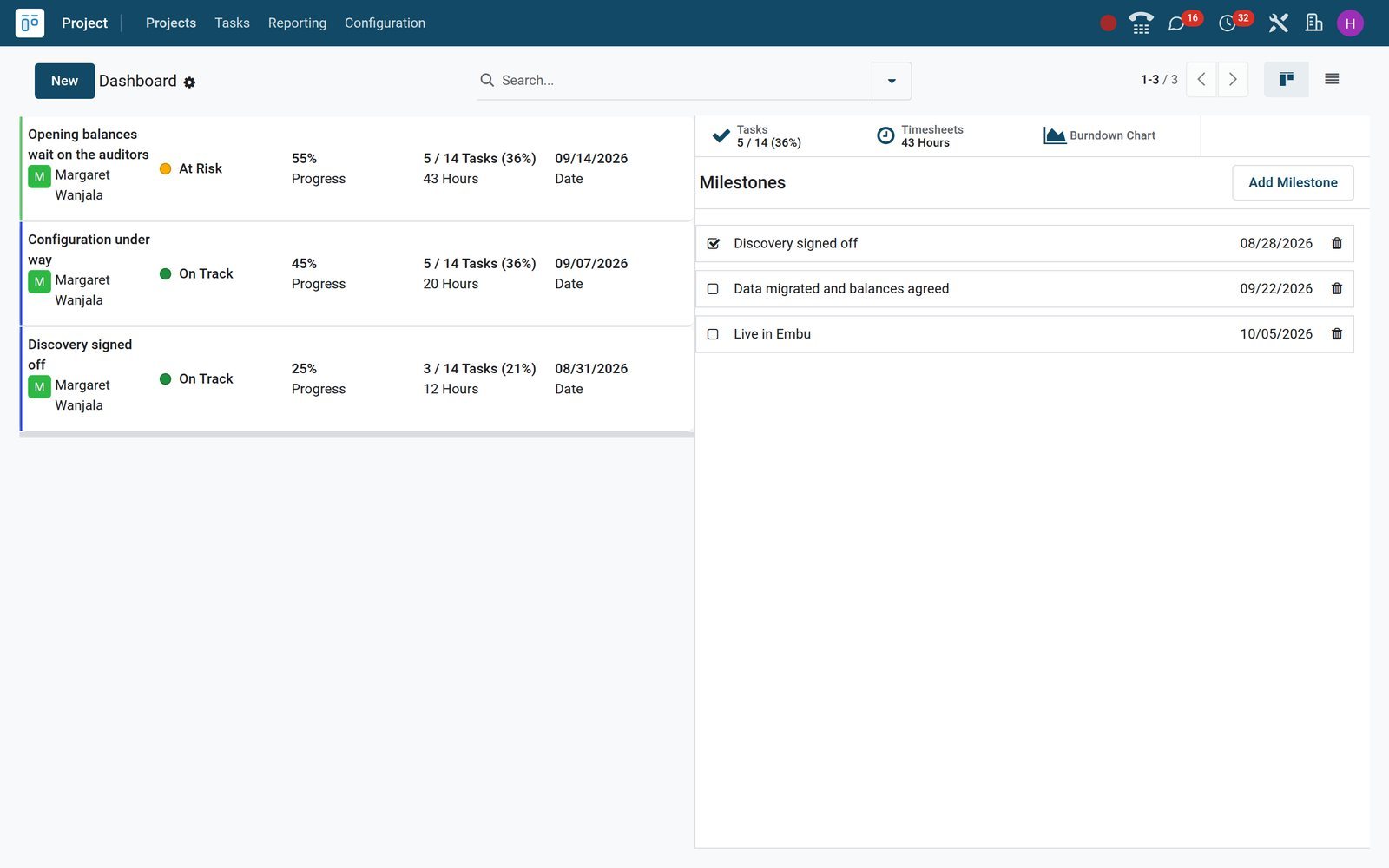
Project updates keep a dated record of status and progress next to milestones and hours.
 Projects
Status updates with the numbers beside them
The updates of the Kifaru go-live show each review with its status, progress and hours, next to the project's tasks, timesheets, burndown chart and milestones.
Explore Projects →Who uses it
Who uses it, and what they see
Project work involves the people who sell, plan, deliver and pay.
Project manager
Plans milestones and assignees, writes project updates and watches hours against the allocation.
Team member
Sees their tasks, moves them through the stages and logs the time they spend.
Client
Follows the tasks shared on the portal and rates the work when a task is done.
Finance
Invoices billable hours from the sales order and reads the project's analytic account.
Works with
Runs with the rest of BridgeERP
Apps that share customers, people and hours with Project.


See where the work piles up
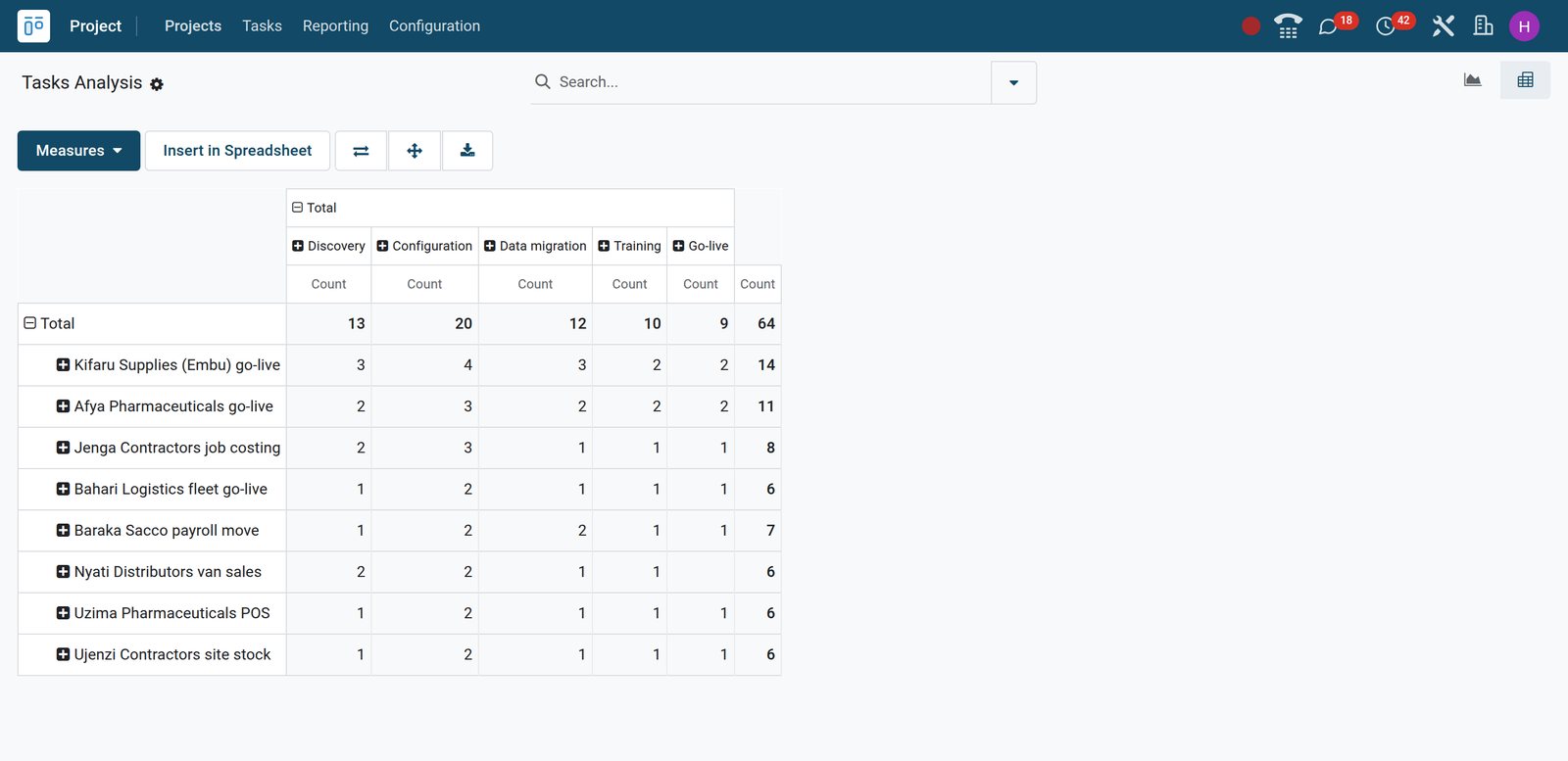
The tasks analysis counts tasks by project and stage, so the overloaded projects stand out.
 Projects
Tasks by project and stage
The tasks analysis puts every project in a row and every stage in a column, ready to regroup by assignee, tag or deadline.
Explore Projects →In your country
Built for firms in any country
What changes from country to country, shown on the demo's Kenyan company.
Billed in your currency
Project time is invoiced in the company currency, Kenya shillings for the Kenyan companies on the demo.
Invoices ready for e-invoicing
Invoices raised from project hours go through the country's e-invoicing like any other customer invoice, Kenya's eTIMS on the demo.
Clients on the portal
Share tasks with clients on the portal instead of chasing them for feedback by phone and email.
Getting started
Getting started
How a team moves its projects onto BridgeERP.
Create the project
Name the project, add the customer and dates, and choose who can see it.
Set your stages
Use stages that match how your team works, such as New, In Progress and Done.
Switch on what you need
Turn on milestones, task dependencies, recurring tasks and timesheets in the settings.
Try it on the demo
The demo has projects with tasks in every stage, milestones, updates and hundreds of timesheet lines.
Questions
Questions about Projects
Not covered here? Contact us.
Can a sales order create the project for me?
Yes. Confirming a sales order for a service product can create the project and its tasks automatically.
Can I invoice the hours my team logs?
Yes. On billable projects, the hours logged on tasks flow to the sales order and are invoiced from there.
Can clients see their project?
Yes. Set the project visible to portal users and share it; clients follow tasks and can rate completed work.
Does it have a Gantt chart?
Yes. Tasks with planned dates appear on a Gantt chart, next to the list, calendar, map and kanban views.
Can a task wait for another one?
Yes. With task dependencies on, a task can be blocked by other tasks until they are done.
How do I report progress to management?
Write project updates with a status and progress, and read the tasks analysis by project, stage or assignee.
Put Projects to work
Add it to your plan and pay only for what you use, or see it running on your own demo first.