

 eCommerce: Sell online from the same catalogue, stock and books you already run
BridgeERP eCommerce turns your product list into a storefront. Each checkout becomes a sales order, raises a delivery in Inventory and flows on to invoicing in Accounting.
Free instant access. No credit card required.
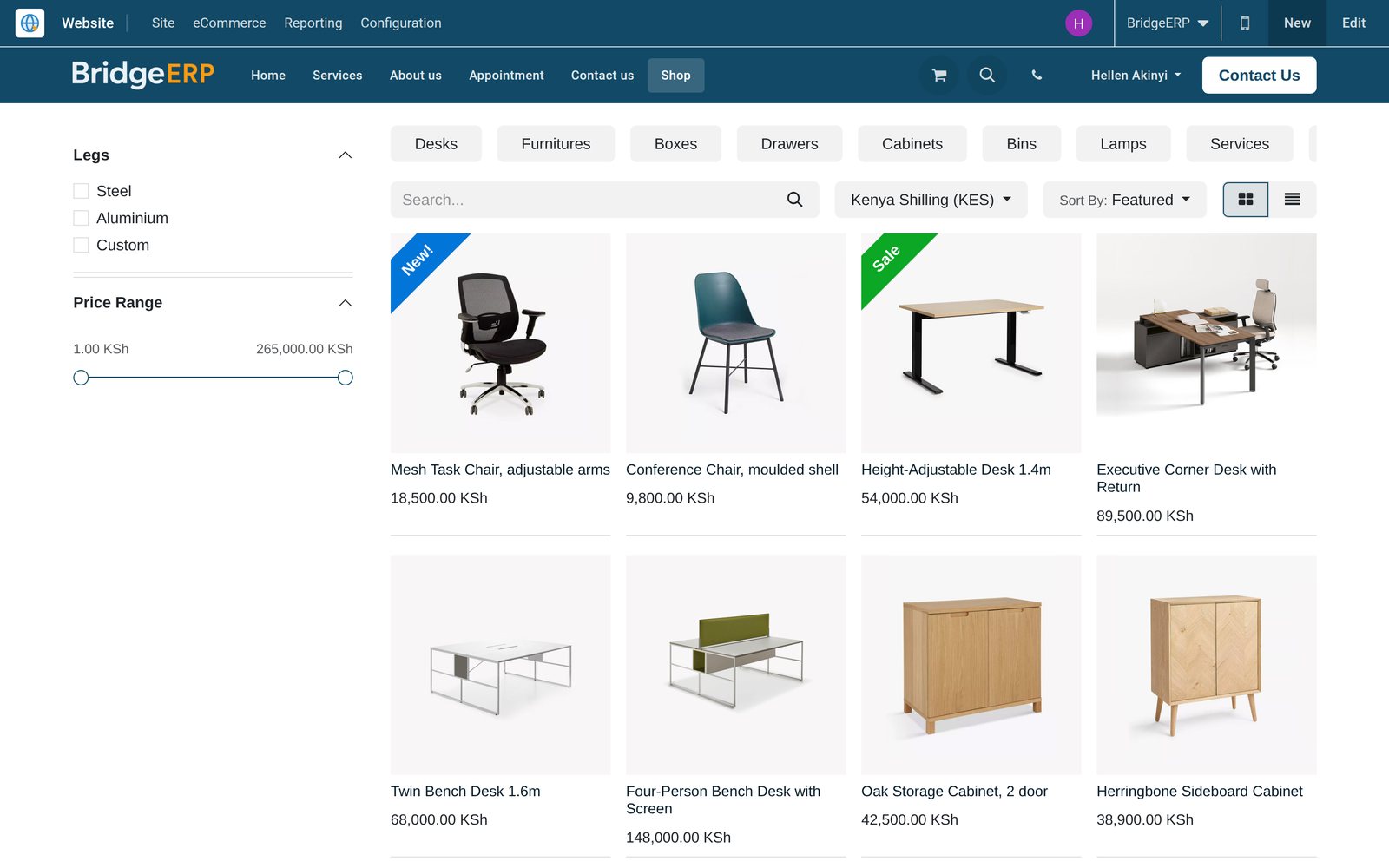
Every web order lands in one list, already a sales order
Checkouts on the storefront arrive as standard sales orders tagged with their website, so the team confirms, ships and invoices them without re-keying anything.
 eCommerce
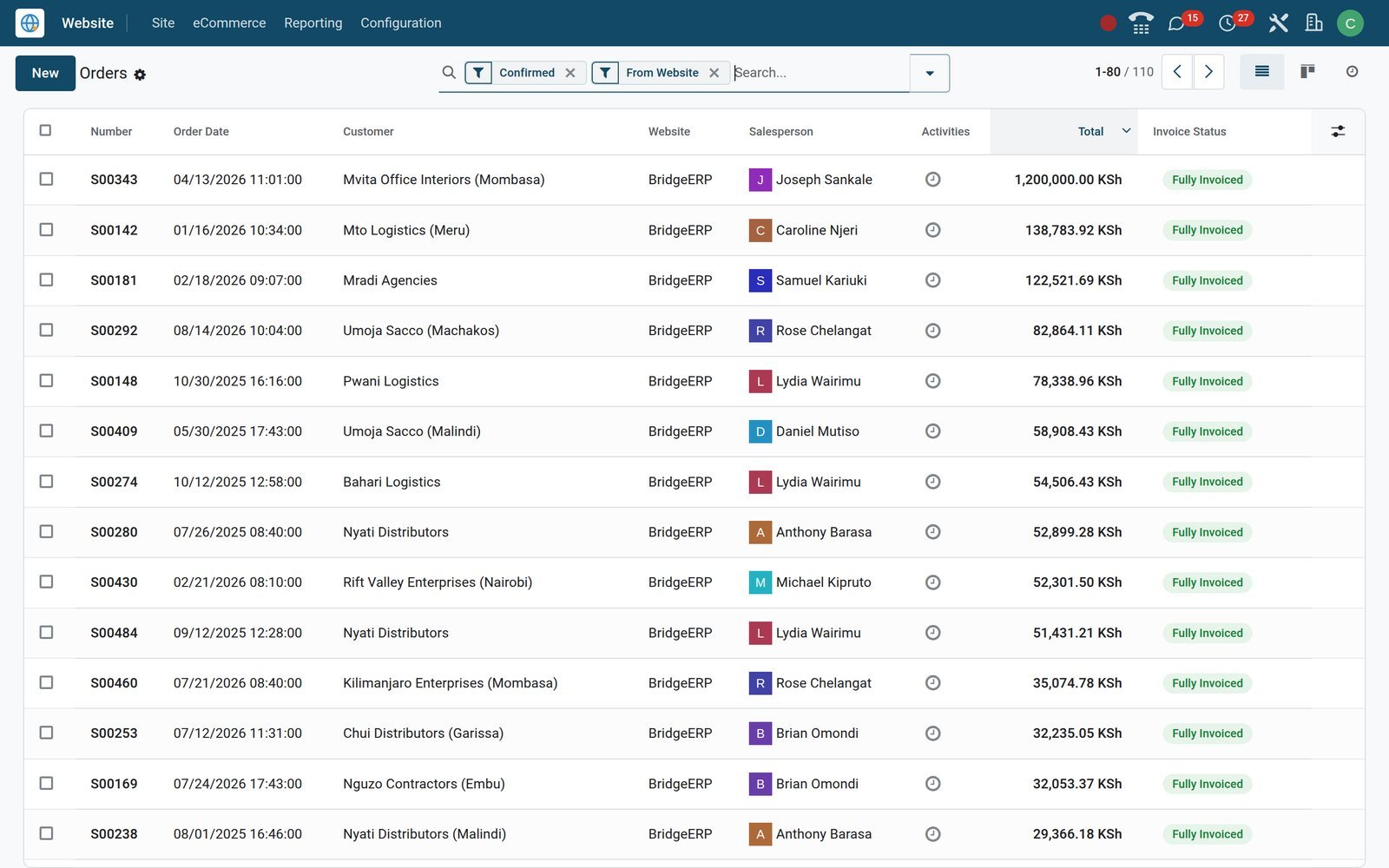
The eCommerce Orders list
The eCommerce Orders menu lists confirmed web orders with customer, order date and total; the demo shop holds 110 of them, every one priced in KES.
Explore eCommerce →By the numbers
What the demo shop is carrying today
Live counts from the BridgeERP demo database, where the storefront, warehouse and ledgers share one set of records.
- 158
- orders placed through the demo storefront, each kept as a standard sales order
- 96
- delivery orders Inventory has raised from those web orders, ready to pick and ship
- 48
- eCommerce categories building the shop's browsing tree, 39 of them nested under a parent
- 17
- payment providers listed and ready to install, including Flutterwave, Stripe and PayPal
Inside the app
Everything the online shop needs, in one app
The eCommerce menus inside the Website app, grouped by the job they do.
Orders, carts and unpaid quotes
Orders, Abandoned Carts and Unpaid Orders split web sales by state, so confirmed orders, idle carts and pending payments each get their own list.
Customers on one card
The Customers menu opens the same contact record Sales and Accounting use, with addresses, orders and invoices reachable from smart buttons.
Products and variants
Products carry photos, tags, an eCommerce description and a Published switch; Attributes turn sizes or colours into variants, each value able to add a price extra.
eCommerce categories
eCommerce Categories give the shop its own browsing tree, separate from accounting product categories, with parent categories holding their sub-categories.
Ribbons, tags and combos
Product Ribbons stamp a coloured label on shop tiles, Product Tags label related items, and Combo Choices define what a combo product lets buyers pick.
Pricelists
Pricelists set prices by currency, quantity or country group; the demo carries KES and USD lists, three of them tied to country groups.
Discounts, loyalty and gift cards
Discount & Loyalty holds coupons, promo codes, buy-X-get-Y offers and loyalty points; Gift cards & eWallet issues balances shoppers redeem at checkout.
Delivery and payment
Delivery Methods charge a flat fee or a rule-based rate, with free delivery above a set amount; Payment Providers connect the checkout to your gateway.
Step by step
From a click on the shop to a paid invoice
Each step is handled by the app that owns it, all reading and writing the same order.
- Step 1
Publish the product
Switch Published on a product with a photo and an eCommerce category and it appears on the shop; 16 demo products are live.
Website Builder - Step 2
Shopper checks out
The shopper reviews the cart, enters a delivery address, picks a delivery method, and can sign in or continue as a guest.
eCommerce - Step 3
Payment is taken
The payment provider chosen at checkout processes the payment and records a transaction against the order for Accounting to reconcile.
eCommerce - Step 4
Order confirmed in Sales
The cart becomes a confirmed sales order tagged with its website and sales team; 110 demo web orders have reached this stage.
Sales - Step 5
Picked and shipped
Confirmation raises a delivery order in Inventory, so the warehouse picks, packs and ships from the same stock the shop displays.
Inventory - Step 6
Invoiced and paid
The order is invoiced in Accounting and the payment matched; 78 demo web orders carry customer invoices, 42 of them already paid.
Accounting
Build a catalogue shoppers can browse in two clicks
Products, variants and the shop's category tree live in the back office and go live with one switch, priced and stocked from the same records.
- eCommerce
Published products, with photos
The Products view shows each item as a tile with photo and price; all 16 live demo products carry images and at least one eCommerce category.
Explore eCommerce →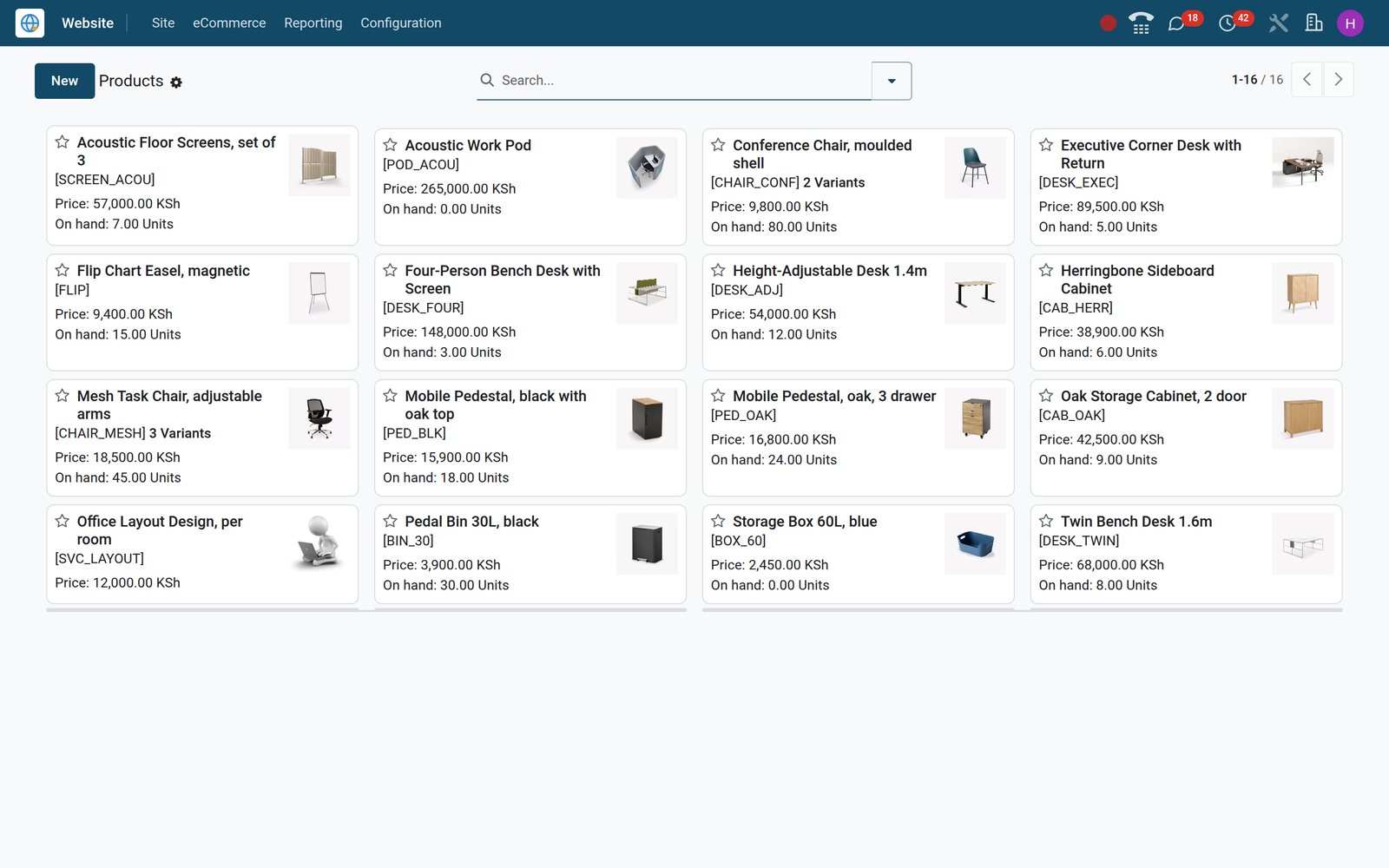
- eCommerce
eCommerce Categories
eCommerce Categories lists all 48 shop categories with their parent, giving the storefront a browsing tree independent of accounting product categories.
Explore eCommerce →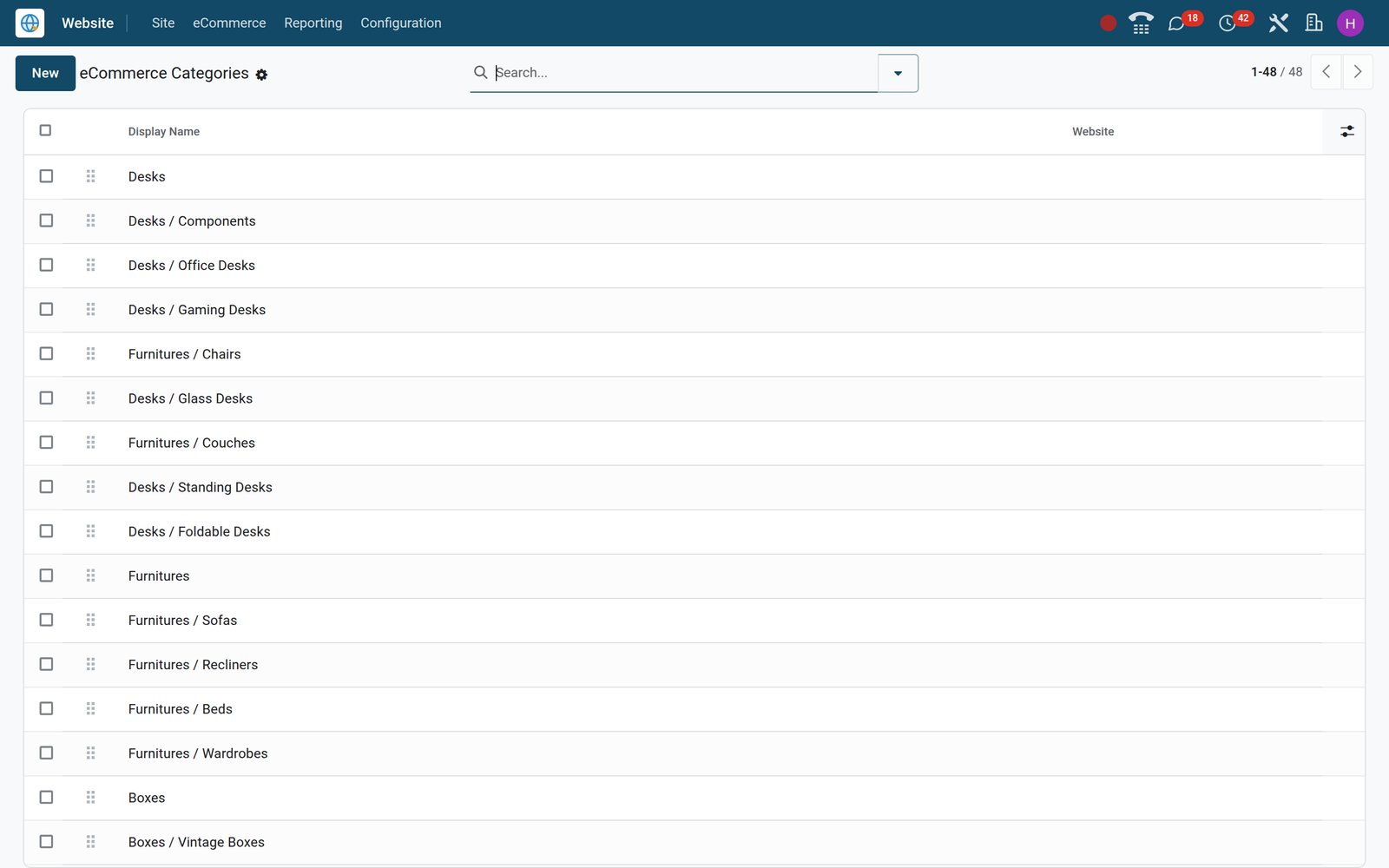
Chase the carts people left behind
Carts that never reached payment and quotations still waiting for it each sit in their own list, with the customer's contact details ready for a follow-up.
- eCommerce
Abandoned Carts
Abandoned Carts gathers idle web carts with customer and value; 22 of the 23 demo carts have an email address, so a recovery email can go out.
Explore eCommerce →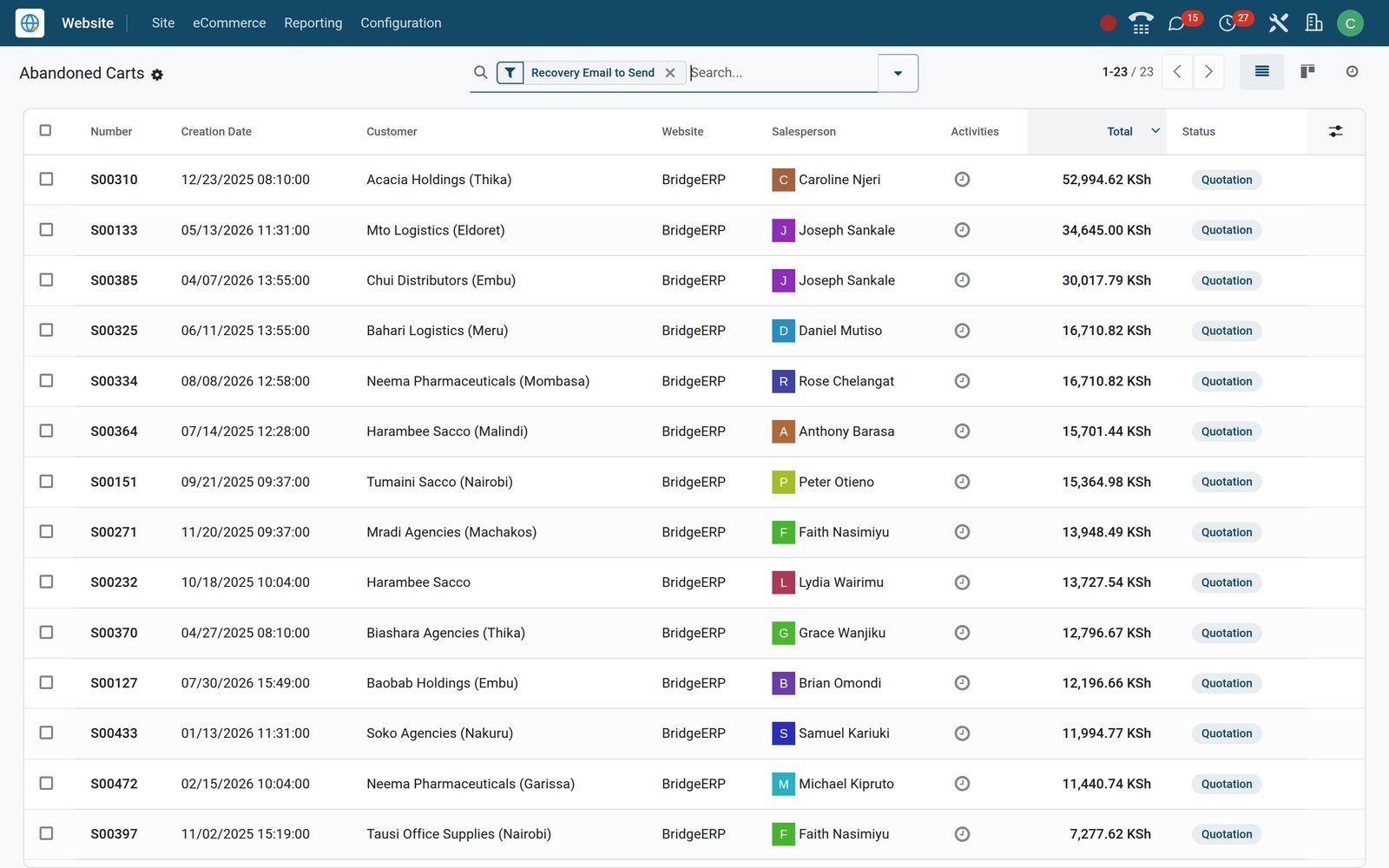
- eCommerce
Unpaid Orders
Unpaid Orders lists web orders sent to the customer but not yet paid, 18 on the demo, each ready for a reminder by email or phone.
Explore eCommerce →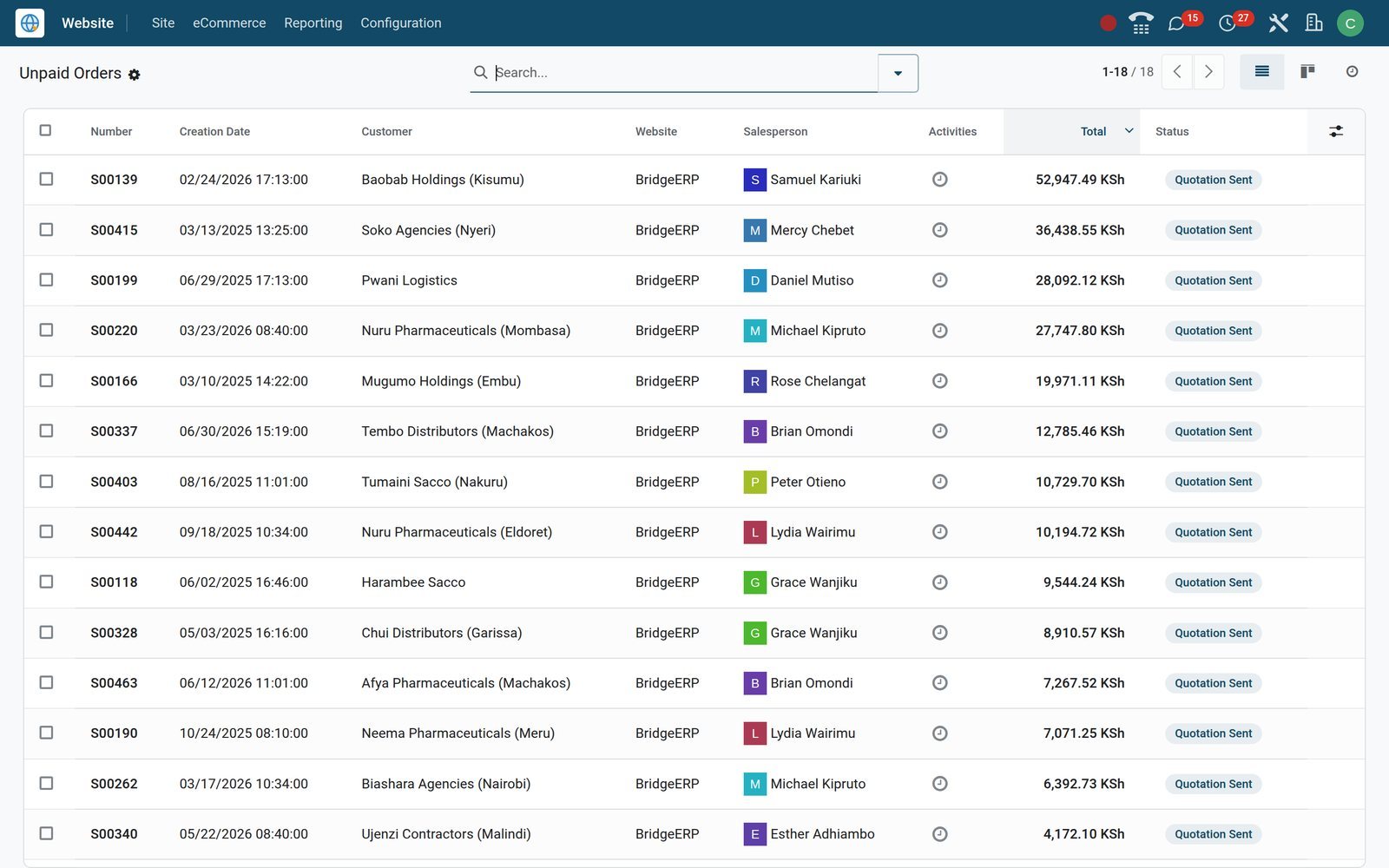
Shop features that come from sharing one database
Because the storefront reads the same products, stock, customers and promotions as the rest of BridgeERP, these work without connectors.
Stock the shop can see
With stock-aware selling on, product pages can show availability, warn below a threshold you set and refuse orders for items that are out of stock.
Upsell where it counts
Alternative products show on the product page, optional ones when adding to cart and accessories in the cart, each set on the product itself.
One loyalty scheme, shop and till
Four demo programmes run on both the webshop and Point of Sale, so points, coupons and codes work wherever the customer buys.
Sale prices that explain themselves
A compare-to price shows the old price struck through beside the new one, and ribbons flag tiles with a coloured label without editing a page.
Two shops, one back office
The demo runs two websites from one database, each with its own sales team and pricelists, while products, stock and customers stay shared.
Checkout on your terms
Each website chooses whether shoppers may check out as guests or must sign in, and can add terms acceptance and an extra information step.
Know what sells online and who is browsing
Reporting reads the same order lines and page visits the shop records, so online figures match what Sales and Accounting see.
- eCommerce
Online Sales analysis
Online Sales charts web order lines by date, product or category in graph and pivot views; 461 lines from the demo shop feed it.
Explore eCommerce →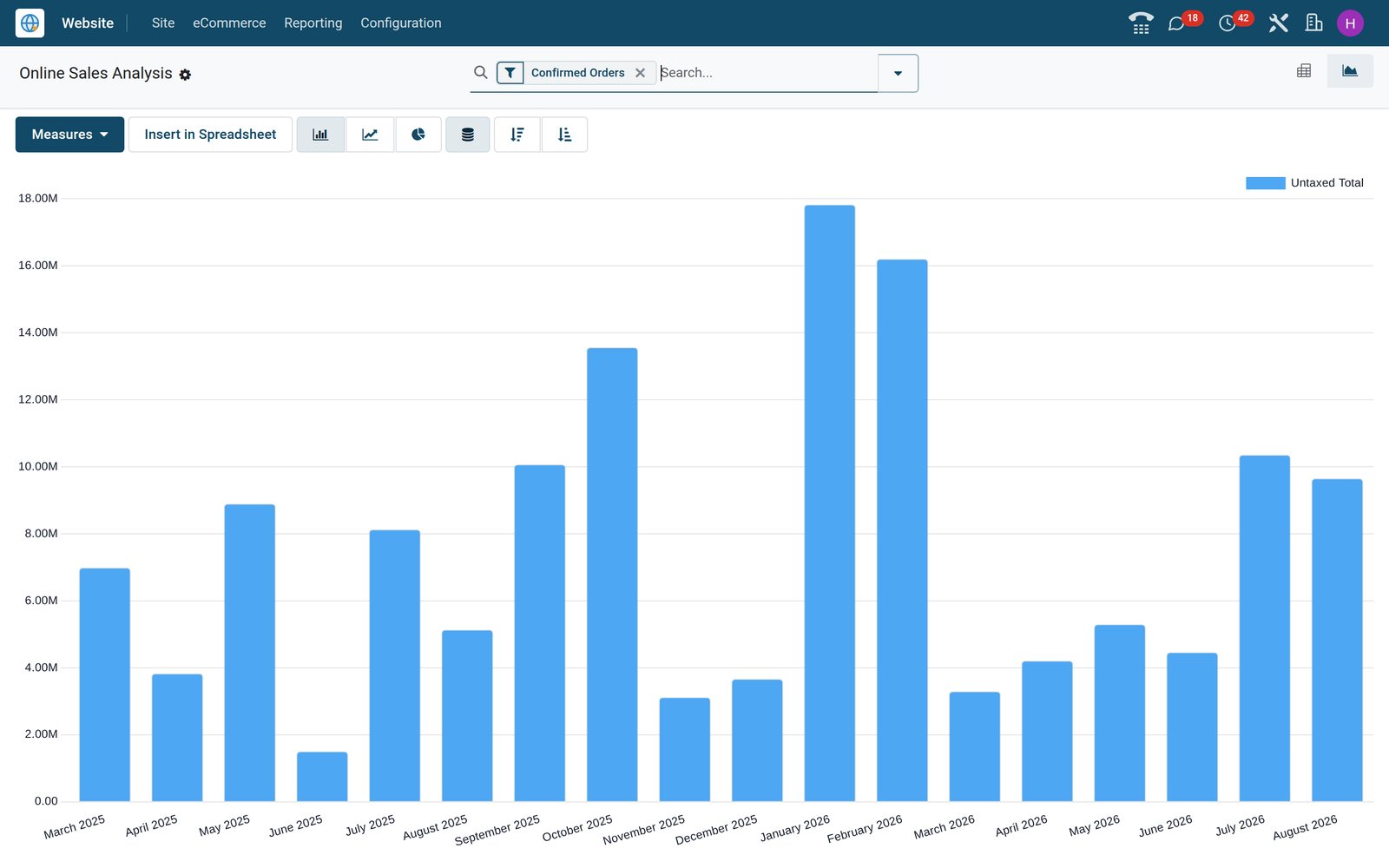
 Website Builder
Visitors
Visitors records each shopper's country, visit count, pages viewed and last connection, and links them to a contact once known; more than 180 are logged.
Explore Website Builder →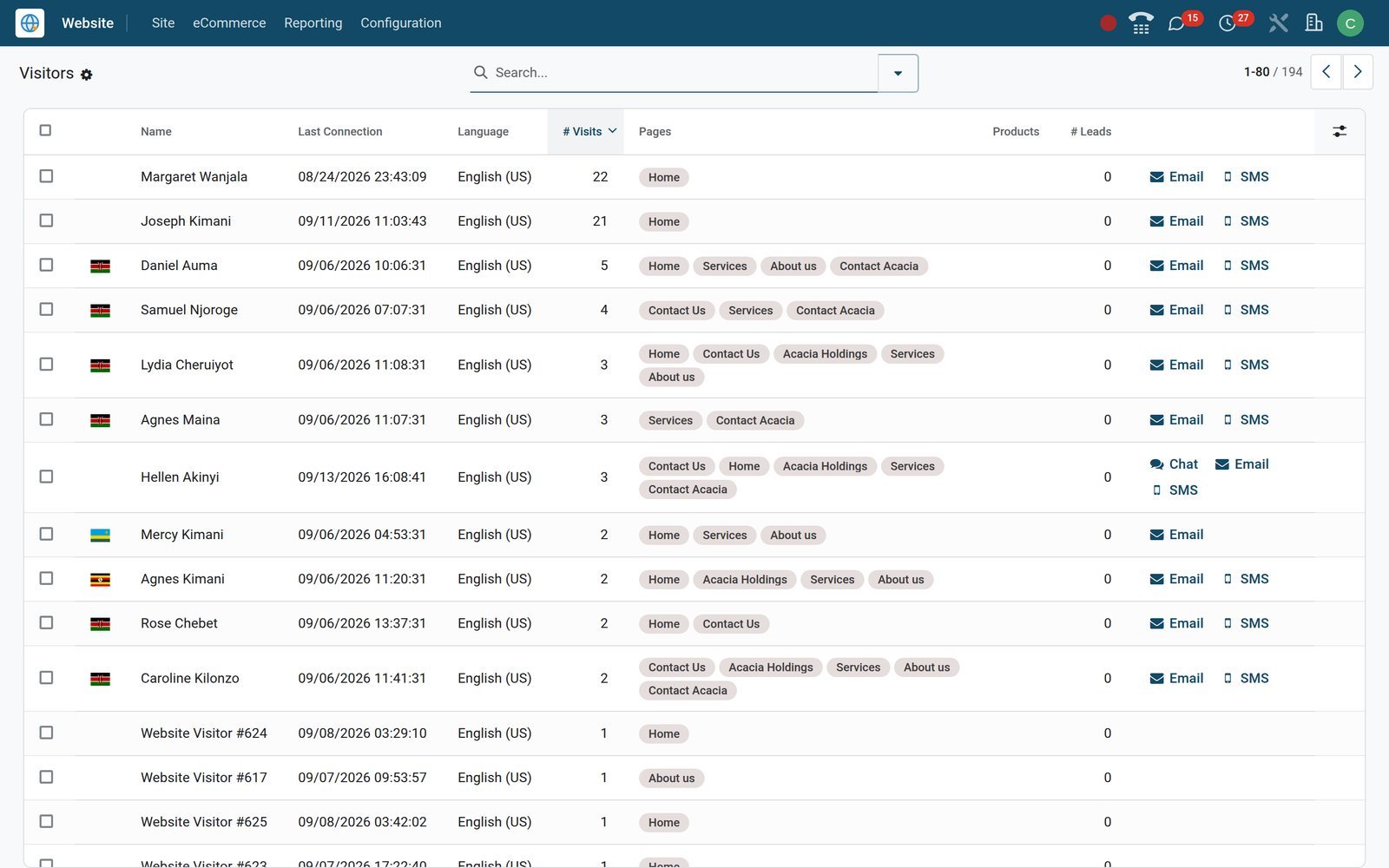
Who uses it
What each person on the team opens
One app, different screens: each role works from the menu that matches the job.
Owner
Opens Online Sales and the eCommerce dashboard to see revenue by product and month without waiting for anyone's spreadsheet.
eCommerce manager
Publishes products, arranges eCommerce Categories, sets ribbons and pricelists, and works through Abandoned Carts for sales worth recovering.
Marketer
Builds promo codes, buy-X-get-Y offers, coupons and gift cards in Discount & Loyalty, and decides for each one whether it runs on the website, in Sales or at the Point of Sale till.
Warehouse lead
Works the delivery orders Inventory creates from web orders, picking and shipping against the same stock figures the shop displays.
Accountant
Invoices web orders and reconciles payments in Accounting; where an e-invoicing module is installed, as KRA eTIMS is on the demo, invoices go to the tax authority.
Customer service
Answers shoppers on the storefront through Live Chat, seeing which pages the visitor has opened while the conversation runs.
Works with
Runs with the apps you already use
The shop is one part of BridgeERP, so orders, stock, customers and payments move between these apps without an integration project.
- WebsitePages, menus, SEO and the editor that designs the storefront the shop lives on.
 SalesEvery web order is a sales order, with the same quotation, confirmation and invoicing flow.
 InventoryDelivery orders, stock levels and availability messages come from the same warehouse records.
 AccountingCustomer invoices, payment reconciliation and tax reports cover web orders like any other sale.
 Point of SaleProducts and loyalty programmes shared with the till, so in-store and online offers match.
 CRMContact-form enquiries from the website arrive as leads for the sales team to follow up.
 Live ChatOperators answer shoppers from a chat window on the storefront and see pages visited.
 SubscriptionsRecurring products can be sold through the shop, then renewed and invoiced by Subscriptions.
 PurchaseReplenish the stock that online orders draw down with purchase orders to your suppliers.
 ManufacturingBuild the goods the shop sells with bills of materials and manufacturing orders.
 AppointmentsBooking pages sit on the same website, so services can be scheduled beside products.
 Email MarketingSend campaigns to the customers and contacts your shop collects, from the same contact list.
In your country
Set up for how businesses get paid, taxed and delivered in their country
Payments, currencies, tax and delivery rules for selling at home and across borders, visible on the demo today.
Payment gateways ready to connect
Flutterwave is in the Payment Providers list ready to connect, and payment methods include local ones such as M-Pesa, tied to Kenya as its country.
Currency and country pricing
The demo shop carries two KES pricelists and one USD pricelist, three tied to country groups, and shoppers switch between the selectable ones.
E-invoicing on web invoices
Web-order invoices post in Accounting and follow the country's e-invoicing; on the demo, the OSCU module submits them to KRA eTIMS and all 16 live products carry KRA item codes.
Delivery by region
Delivery Methods can be limited to countries, states or postcode prefixes and priced flat or by rules on weight, volume or order value.
Reports and control
Reports that answer the questions owners ask
Every report below is a menu in the Website app or the Dashboards app on the demo.
Online Sales
Pivot and graph views of web order lines by product, category, salesperson or date, limited to orders that came through a website.
eCommerce dashboard
The Dashboards app includes a ready-made eCommerce dashboard, one of 24 spreadsheet dashboards on the demo, for online sales at a glance.
Visitors
Visitor records show country, number of visits, pages viewed and last connection, and link to the contact once the shopper signs in.
Page Views
Page Views logs each page a visitor opened, with its URL and time; 403 views are recorded on the demo.
Abandoned Carts
A live list of carts that never reached payment, with customer, date and value, each order recording whether its recovery email was sent.
Unpaid Orders
Web quotations sent to customers and still waiting for payment, filtered to website orders so the online team owns the follow-up.
Getting started
Go live in six steps
Set-up happens in standard BridgeERP screens; nothing below needs custom development.
Import your catalogue
Load products, prices and categories from an Excel or CSV file, using the import template and the Test button before anything is written.
Set checkout rules
Website Settings decide guest or signed-in checkout, the delay before a cart counts as abandoned and whether the recovery email sends itself.
Connect a payment provider
Open Payment Providers, install the gateway you use, such as Flutterwave, Stripe or PayPal, enter its keys and run it in test mode first.
Set delivery methods
Add flat-rate or rule-based Delivery Methods, limit them by region and publish the ones shoppers may choose at checkout.
Shape the categories
Build the eCommerce Categories tree, then assign each product to one or more categories so the shop's navigation lists them.
Publish and check
Switch Published on each product, open the shop in the website preview and check prices, stock messages and ribbons before launch.
Questions
Questions about eCommerce
Not covered here? Contact us.
Can customers pay with mobile money such as M-Pesa?
Checkout payments run through the gateways under Payment Providers. Flutterwave is listed there ready to install, and M-Pesa is defined as a payment method for Kenya. Once a provider is connected with your merchant keys, you switch on the payment methods it offers for your shop.
Does the online shop use the same stock as my warehouse?
Yes. Shop products are the same records Inventory manages, so with stock-aware selling the product page can show availability, warn when stock falls below a threshold and block orders for out-of-stock items. Confirming a web order raises a delivery order in the warehouse.
Can I sell in more than one currency?
Yes. Each pricelist carries its own currency and can be tied to country groups, and each website lists the pricelists it offers. The demo shop carries KES and USD pricelists, and shoppers switch between the selectable ones on the storefront.
What happens when a shopper leaves without paying?
The cart stays as a draft web order and, after the delay set in the Website settings, appears under Abandoned Carts. The team can send a recovery email from there, or the website can send it automatically. Quotations sent but not paid sit separately under Unpaid Orders.
Can customers check out without creating an account?
Yes. Each website decides whether signing in is optional, required or not offered at checkout. Guests enter an email and a delivery address, and the order is still linked to a contact record in BridgeERP for invoicing and delivery.
Can I run more than one online shop?
Yes. One database can host several websites, each with its own domain, pricelists, sales team and published products, while stock, customers and accounting stay shared. The demo runs two websites side by side.
Are invoices created automatically for online orders?
Web orders are ordinary sales orders, so you can invoice them from the order like any other sale. Turning on Automatic Invoice in the Sales settings issues the invoice as soon as the payment provider confirms the online payment.
Can I import my existing product catalogue?
Yes. The import tool reads Excel or CSV files, offers a ready template for common data such as products and has a Test button that checks the file before anything is saved. Related records such as categories can be referenced by name in the same file.
Tax compliance
Invoices your tax authority accepts
In Kenya, Uganda, Rwanda, Burundi and Zambia, each invoice, receipt and stock movement goes to the tax authority's own system when you post it. Ghana and Pakistan come next, and we connect 73 more countries on request.
- KenyaReady
eTIMS KRA
Invoices, credit notes, POS receipts and stock movements
- UgandaReady
EFRIS URA
Invoices, POS receipts and stock
- RwandaReady
EBM RRA
Invoices, POS receipts, stock and imports
- BurundiReady
EBMS OBR
Invoices, POS receipts, stock and manufacturing
- ZambiaReady
Smart Invoice ZRA
Invoices, POS receipts, stock and imports
Where eCommerce fits
Nothing here is a silo: the apps around it read and write the same records, so the hand-offs happen on their own.
What feeds it, and what it feeds — these are real app connections, not a diagram.
- Customers & sales
- Operations
Website Builder
Drag-and-drop site builder with blog, forms, SEO and multi-language.
Website Builder →
Put eCommerce to work
Add it to your plan and pay only for what you use, or see it running on your own demo first.